Windows 11 asks for admin access to open Storage settings, but breaks Temporary files cleanup for some files/folders
Windows 11 KB5074105 (Build 26200.7705) quietly added a new feature that requires admin permission to access your Storage settings. Microsoft confirmed to Windows Latest that this change is “intentional” and is not a known issue. At the same time, it looks like the Temporary files cleanup is acting up, and it can no longer detect certain folders.
Windows 11 KB5074105 shipped on January 29 and is an optional update, so it doesn’t install on its own. However, quite many of us installed it because it finally addresses the January 2026 Patch Tuesday’s black-screen bug on Nvidia GPUs. The update also fixed issues with the Start menu.
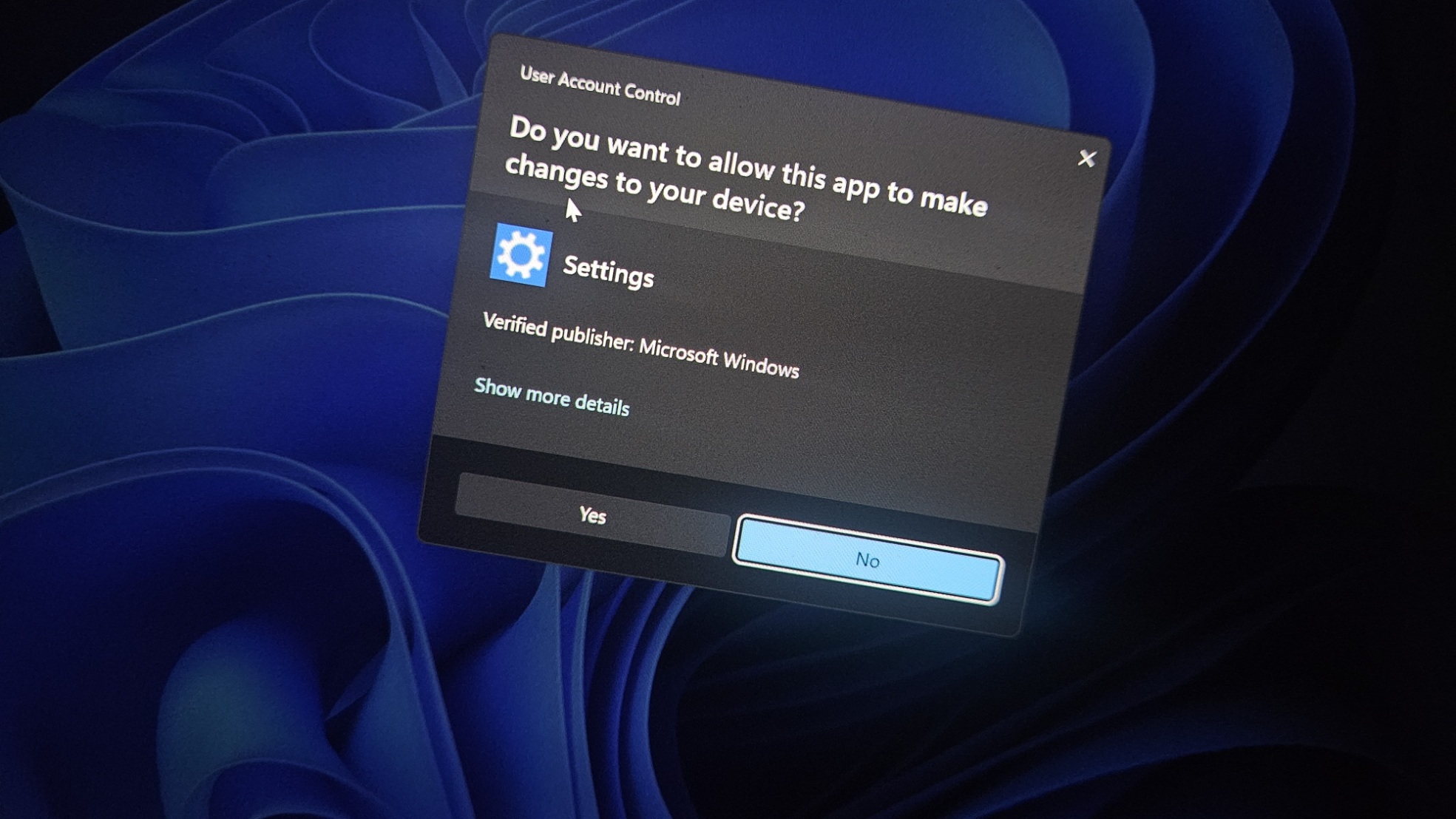
At the same time, you might notice that Windows 11 now shows a User Account Control (UAC) prompt when you open Storage settings
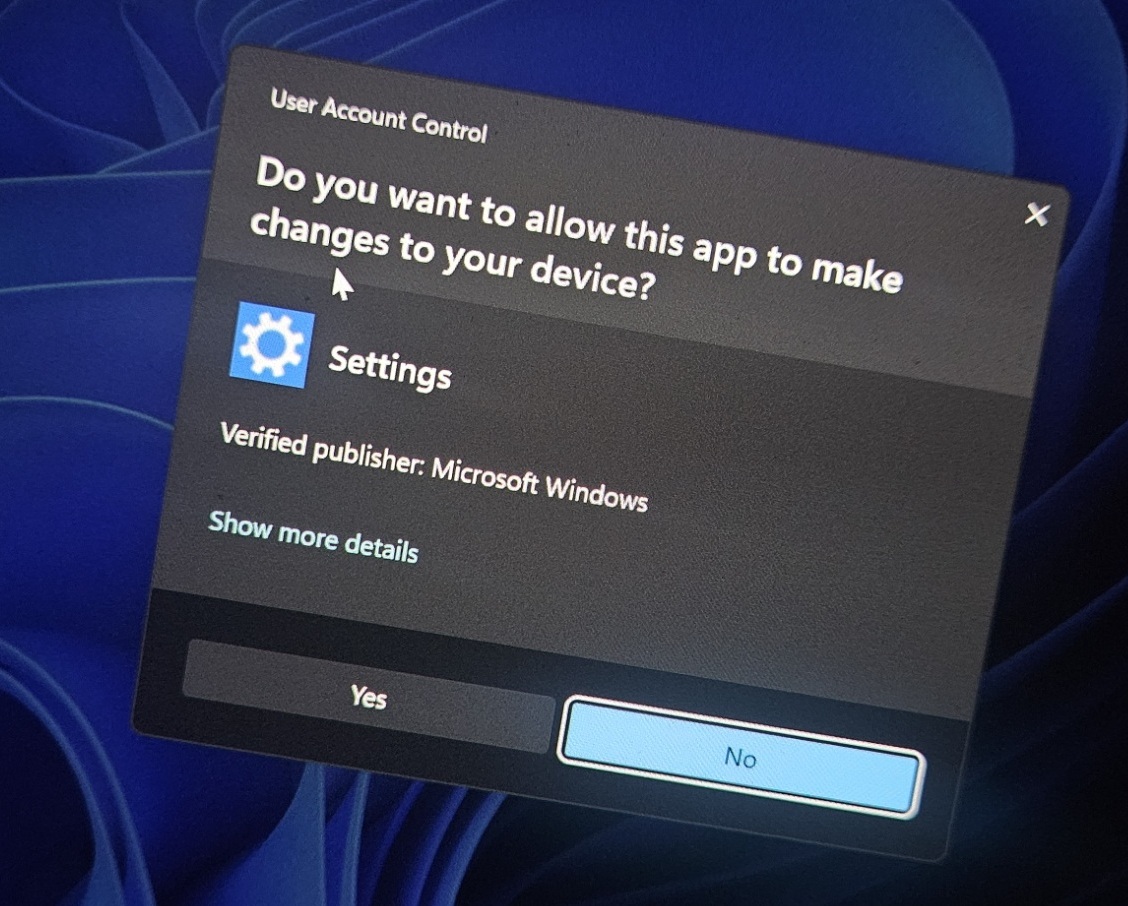
By forcing an elevation check, Windows makes sure only an administrator-approved session can access system locations and protected files, which reduces the risk of a standard user account, a background process, or a bad attacker from deleting data.
“To help ensure that only authorized Windows users can access system files, Windows now displays a User Account Control (UAC) prompt when you open Storage settings (Settings > System > Storage),” Microsoft also noted in an update to the support document.
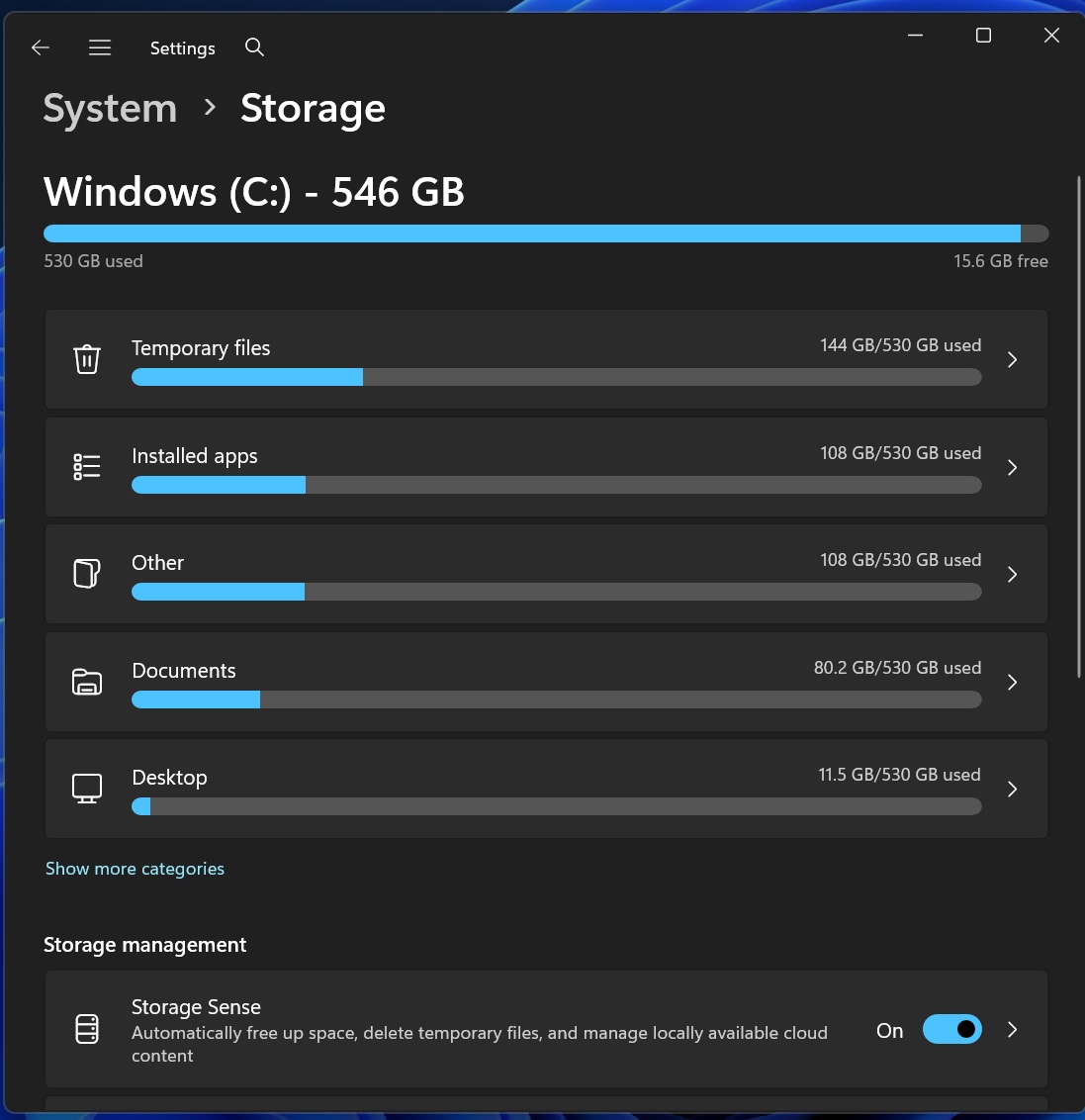
While it’s a good idea to protect storage settings, it looks like Microsoft accidentally broke the Temporary files cleanup feature for some of us.
Temporary files can’t clean Windows Update files anymore
After Windows asked me to grant admin permission to open Storage Settings, I selected Yes, and the Storage page finally loaded/fetched the numbers for folders or drives. But when I opened Temporary files and refreshed the results, I noticed that it’s no longer possible to clean up Windows Update files.
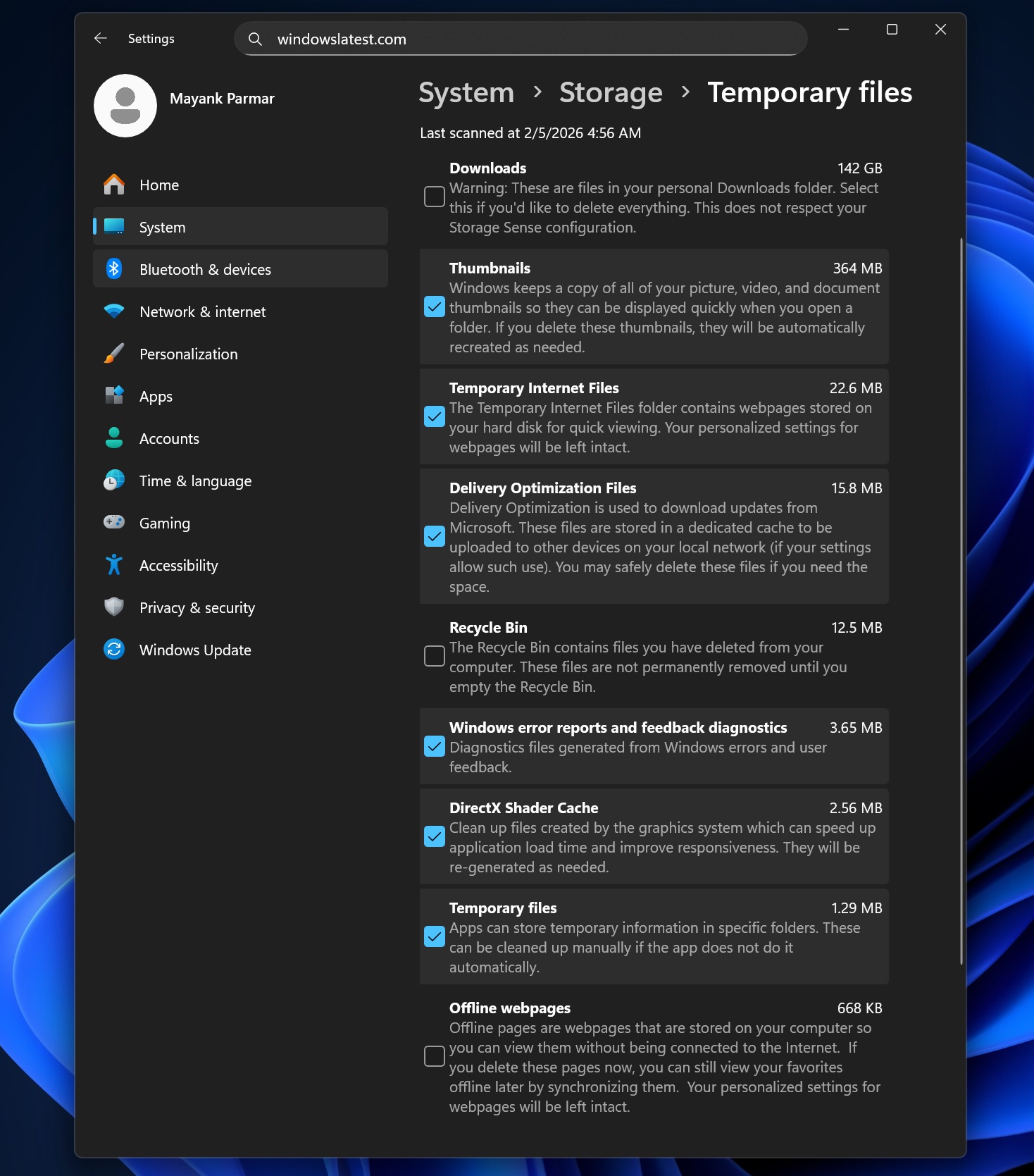
As you can see in the above screenshot, Settings > System > Storage > Temporary files is not showing Windows Update Cleanup (and other admin-only cleanup buckets).
Now, if I open Disk Cleanup, choose to clean up system files, it shows Windows Update Cleanup (380 MB in my case) and even Windows upgrade log files.
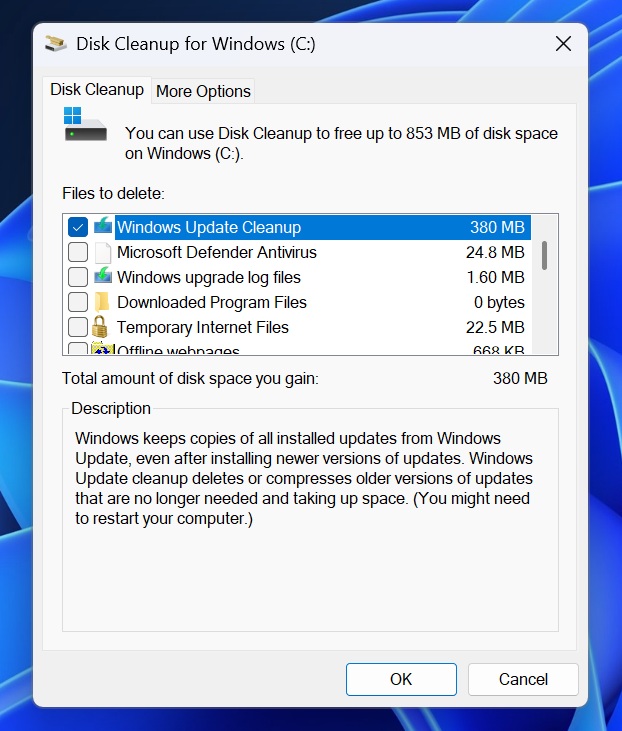
That tells us the Temporary files page is scanning in a non-elevated context, so it only lists cleanup items that a standard user can enumerate and delete.
Without an elevated token, the Settings cleanup scan either cannot read them reliably or is blocked from offering deletion, so Windows just hides them. Disk Cleanup, when elevated, loads the system cleanup handlers that can see and remove those files, which is why it still lists them.
In our tests, Windows Latest verified that the Temporary Files subpage no longer scans for and cleans up Windows Updates, Device Drivers, and several other options normally restricted to those with Admin access.
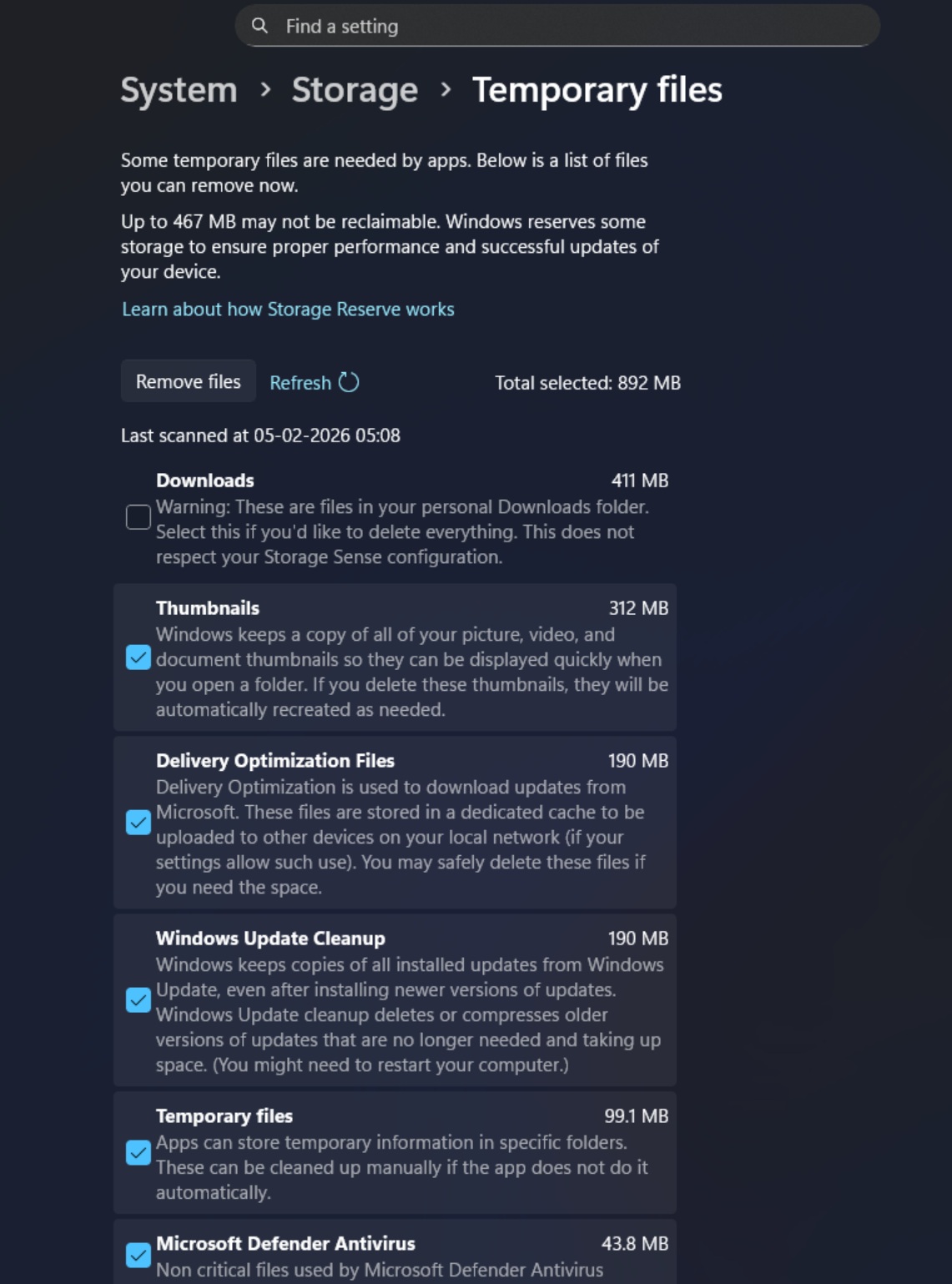
If you don’t install Windows 11 KB5074105 or remove the update if it’s already installed, you’ll notice that the same Temporary files subpage correctly detects the Windows Update and other files:
What are the other changes shipping on Windows 11 this week?
If you’re on Windows 11 Build 26200.7705 or newer, there are quite a few noteworthy changes to watch out for. One of the biggest changes is the Cross Device Resume feature for Windows 11, starting with Android apps.
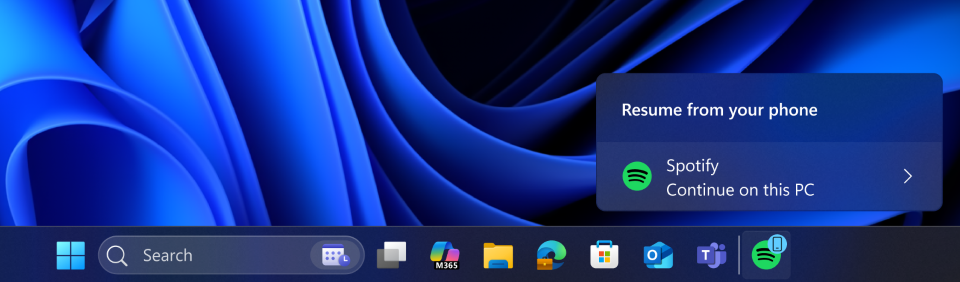
For example, if you play a song on Spotify on your phone, then switch to desktop, the Windows taskbar will let you instantly resume the playback.
Or you can resume editing and viewing documents in apps like Microsoft 365, but the catch is that only phones from certain companies support this feature. Supported phone brands include Samsung, Xiaomi, OPPO, and even Honor. But if you own an iPhone, you can’t use the Resume feature, thanks to Apple’s restrictions.
Also, Microsoft confirmed that it’s now possible to turn on or off Smart App Control (SAC) without clean installing Windows 11.
This means, if you go to Windows Security App > App & Browser Control > Smart App Control, you will notice that it’s now possible to turn on or off the feature.
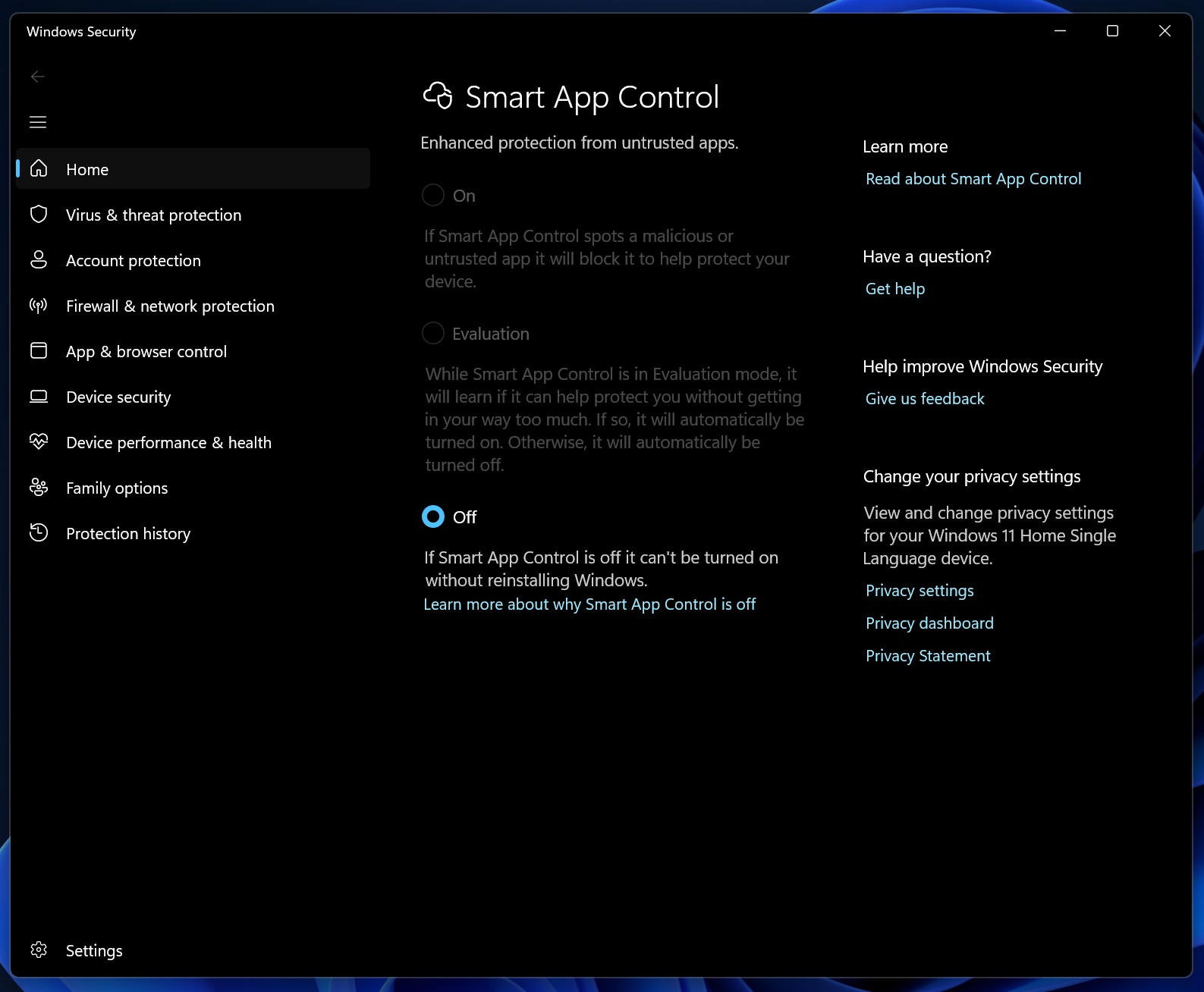
However, we cannot verify if we still need to clean install this specific build of Windows 11 before the Smart App Control feature is no longer tied to Windows clean install. That’s my theory because the update is installed, and I still cannot turn on Smart App Control.
While I understand Smart App Control change is a gradual rollout, I’ve force-enabled it and haven’t had any luck.
What about you? Do you have a broken Temporary files feature and Smart App Control missing toggles issue on Windows 11? Let me know in the comments below.
First Appeared on
Source link