

8 Gemini tricks on Android most people still aren’t using
Joe Maring / Android Authority
Gemini is perhaps the best thing to happen to Android since Google Assistant — and it’s constantly pushing the boundaries in smartphone AI. Google recently started testing a full-blown agentic mode where Gemini can do things on your behalf in the background while you are busy scrolling through your TikTok feed. While that future is still a bit away, you have plenty of smart AI things you can do on your Android smartphone using Gemini.
I’ve put together some of the coolest tricks I came across on my Pixel 10 that make the best of Gemini. And I can assure you these are no random party tricks, but ones you wouldn’t be able to imagine life without.
What’s your main use for Gemini on Android?
290 votes
Organize real-life clutter
Until smart glasses go mainstream and give you a set of constantly monitoring AI eyes, you have to make do with pointing the camera at things. Let me tell you, though, that Gemini Live is insane at that. I’ve tried doing the impossible: assembling IKEA furniture. But with the help of Gemini Live, I wasn’t trying to pull my hair out trying to find the right parts and screws.
It works equally well for more technical things, like where to place a mesh router node to balance speed and coverage, and for simpler tasks like getting ideas to organize a cluttered drawer. It’s as simple as talking to a human assistant who can see what you’re seeing and knows everything.
Gmail and Docs
C. Scott Brown / Android Authority
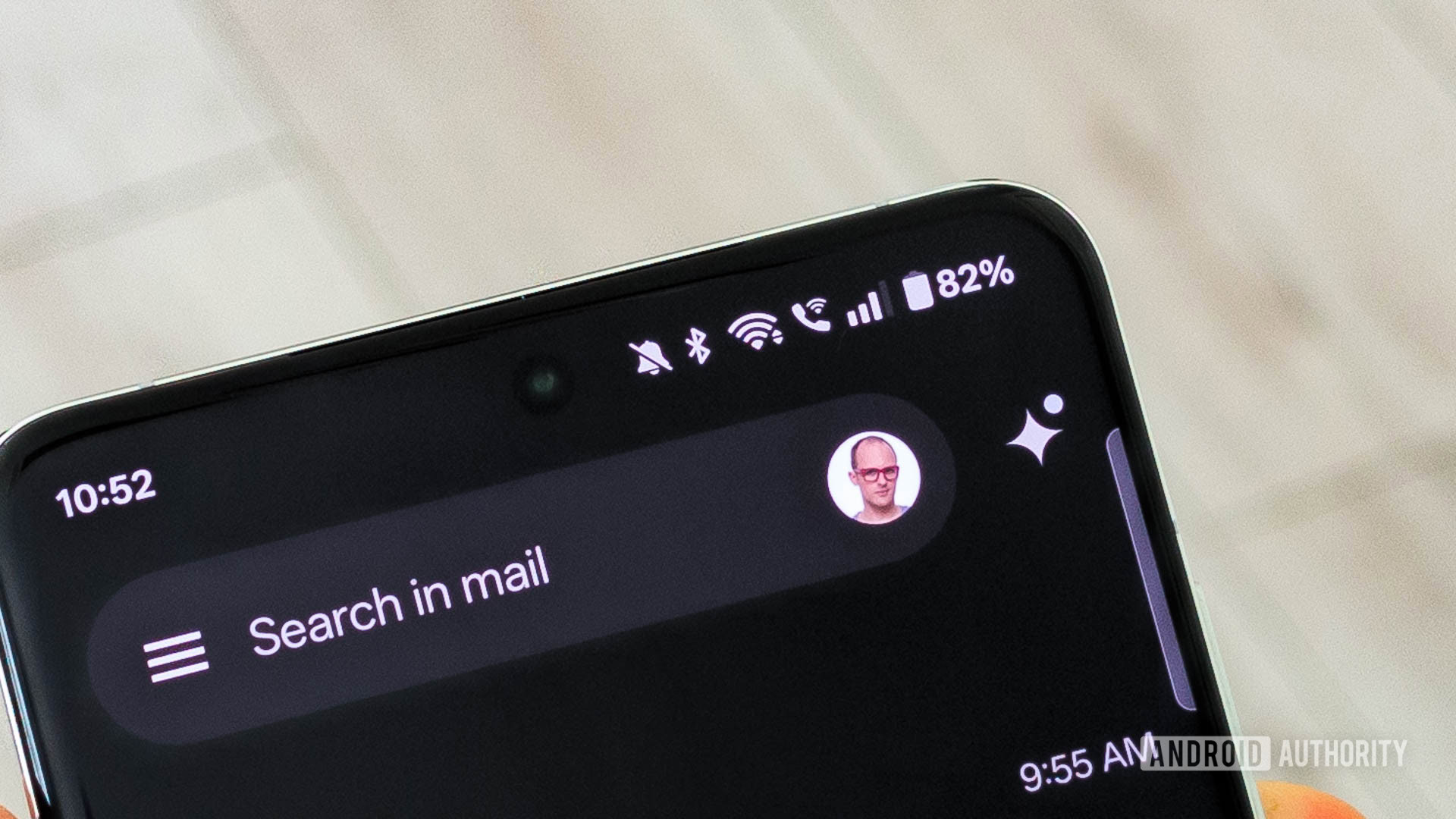
If you are on a Workspace account or have subscribed to an AI Google One plan, you get Gemini integration inside Gmail and Docs. At this point, I sincerely wonder how I even survived without it.
I use Gemini the most in Gmail to dig up information from old conversations, get a rundown of my history with a particular person, or quickly grasp the gist of a long email chain. Meanwhile, in Docs, Gemini uses the document as its source to answer my questions, and it can even refer to the web if it needs additional context or resources. That alone has saved me a lot of tab switches to google everything manually.
Extracting tasks from lengthy messages
We all get those chunky, bloated Slack messages from our bosses that assign different tasks to different employees, and it’s a real hunt to find the one meant for you. You can either look for the relevant part manually, like a caveman, or just share the text with Gemini and let it find the answer for you.
What’s even better is that you can ask it to add the task directly to Google Tasks as a reminder or Calendar, so you don’t have to actively remember it anymore.
Gemini Live with screen sharing
Gemini Live’s capabilities aren’t limited to seeing through the camera lens — it can also see what’s on your screen in real time. It’s one of the handiest features if you need help with a series of steps without having to share each one with Gemini as a separate screenshot or text grab.
I’ve used it during sign-up flows to better understand privacy policies and terms of use that we often blindly accept. I’ve also used it to set up a Google Ads campaign and ask questions every step of the way because I had never set one up before. It feels custom-made for complex tasks that require a bit of hand-holding.
Switch up your message tone
Calvin Wankhede / Android Authority
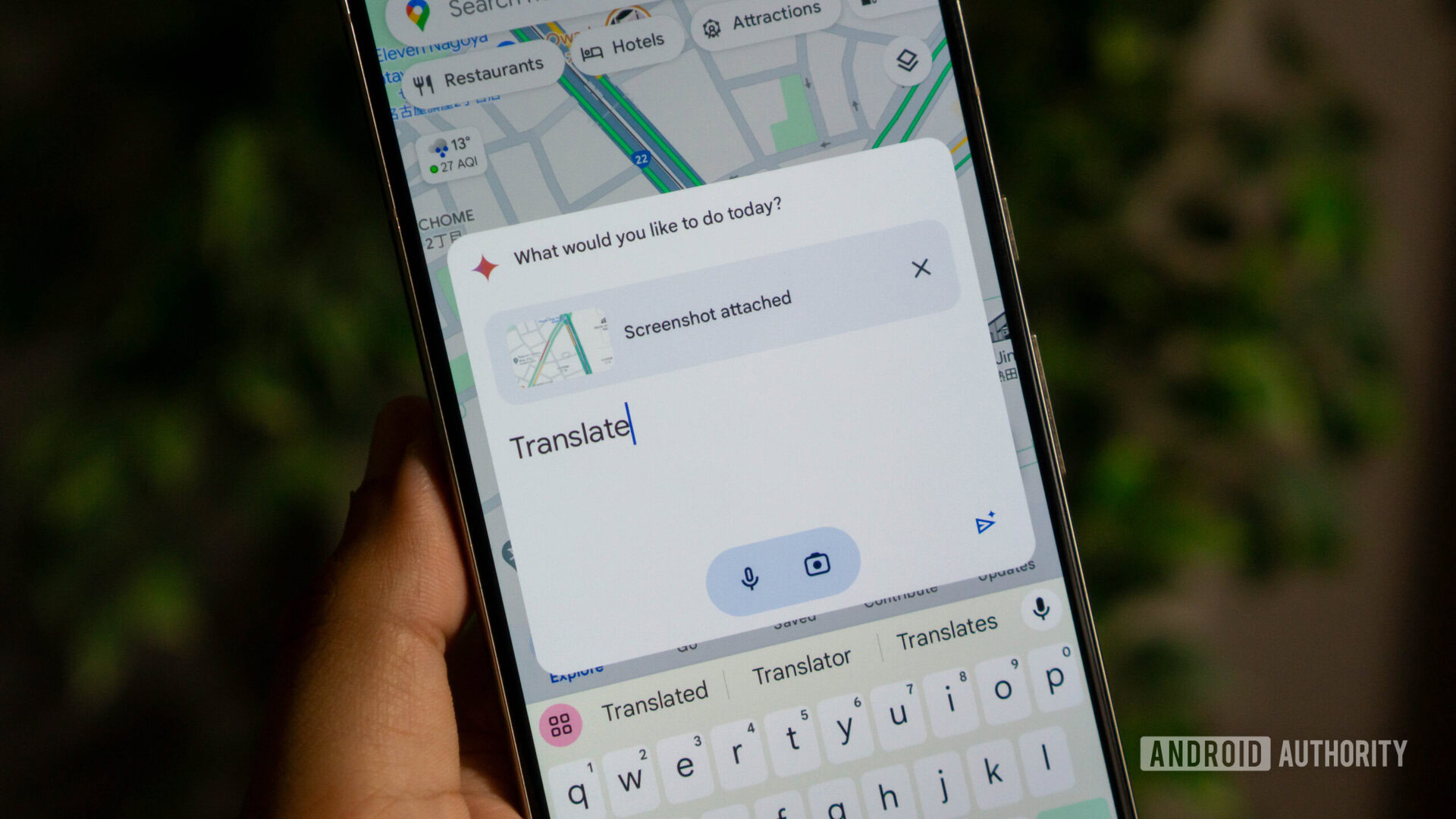
I’ve had instances where I mindlessly typed out a message without caring for my tone, only to read it back and realize how off I sounded. Unlike the old days, I don’t have to copy the text and paste it into ChatGPT to fix the grammar or soften the tone. I can simply invoke Gemini, ask for the changes I want, for it to instantly read the text on my screen and give me a few alternatives that I can quickly paste and hit send.
Honestly, it’s not as seamless as Apple Intelligence (yes, I said that), which lets you select text and access a rewrite option directly from the overflow menu, but it’s still better than nothing.
Gemini can analyze anything
If you think Gemini’s ability to read your screen is limited to text, you’re not giving it enough credit. You can bring up Gemini and ask it to analyze literally anything on your screen, and it will give you a gist.
I’ve used it on YouTube videos. It parses the entire video, not just the text visible on the screen, and gives me a quick overview of what it contains, along with timed chapters. Besides videos, I’ve used it to extract information from lengthy and complicated PDFs and even articles open inside Chrome. At this point, it feels like I call upon Gemini for almost everything.
Shopping comparisons with Gemini
Whenever I research a product, I usually open a bunch of tabs with comparable alternatives and stories, which I manually scan and analyze to piece together the information I need to make the right decision. A lot of overthinking goes into purchasing even the smallest things — lots of us are guilty of it.
That habit has changed a bit because I can now ask Gemini to compare the product I’m researching with its competition, find negative Reddit reviews, and answer follow-up questions without needing to leave the screen or juggle between a dozen tabs.
Generate images from rough sketches
This one is fun. Gemini’s Nano Banana has excellent image generation capabilities, but what we often struggle with is writing the perfect prompt. I sometimes find myself generating prompts with AI just so I don’t miss any details.
You can make the process more fun by drawing a rough image with your finger, or even better, with an S Pen on the Galaxy S26 Ultra. I used the Google Keep app for this, but you can use any app you prefer. My drawing was extremely rough, but when I asked Gemini to convert it into a real image, it did so almost instantly. And the results? You can see for yourself what a scary-looking teddy I made and how adorable Gemini turned it into.
Don’t want to miss the best from Android Authority?

What’s your favorite Gemini feature on Android? Would you add something to this list? Let me know in the comments.
Thank you for being part of our community. Read our Comment Policy before posting.
First Appeared on
Source link