Windows 11 KB5077181 25H2 out with new features, direct download links for offline installers (.msu)
Windows 11 KB5077181 is now rolling out, and it’s this year’s second update, after a disastrous run in January. February 2026 Update adds features like ‘Cross-Device resume’ for Android phones, and more. It’s available via Settings > Windows Update, but Microsoft has also posted direct download links for KB5077181 offline installers (.msu).
KB5077181 is a mandatory update for Windows 11 25H2, and it’ll begin downloading automatically on all PCs unless Windows Updates are manually paused for seven days or longer.
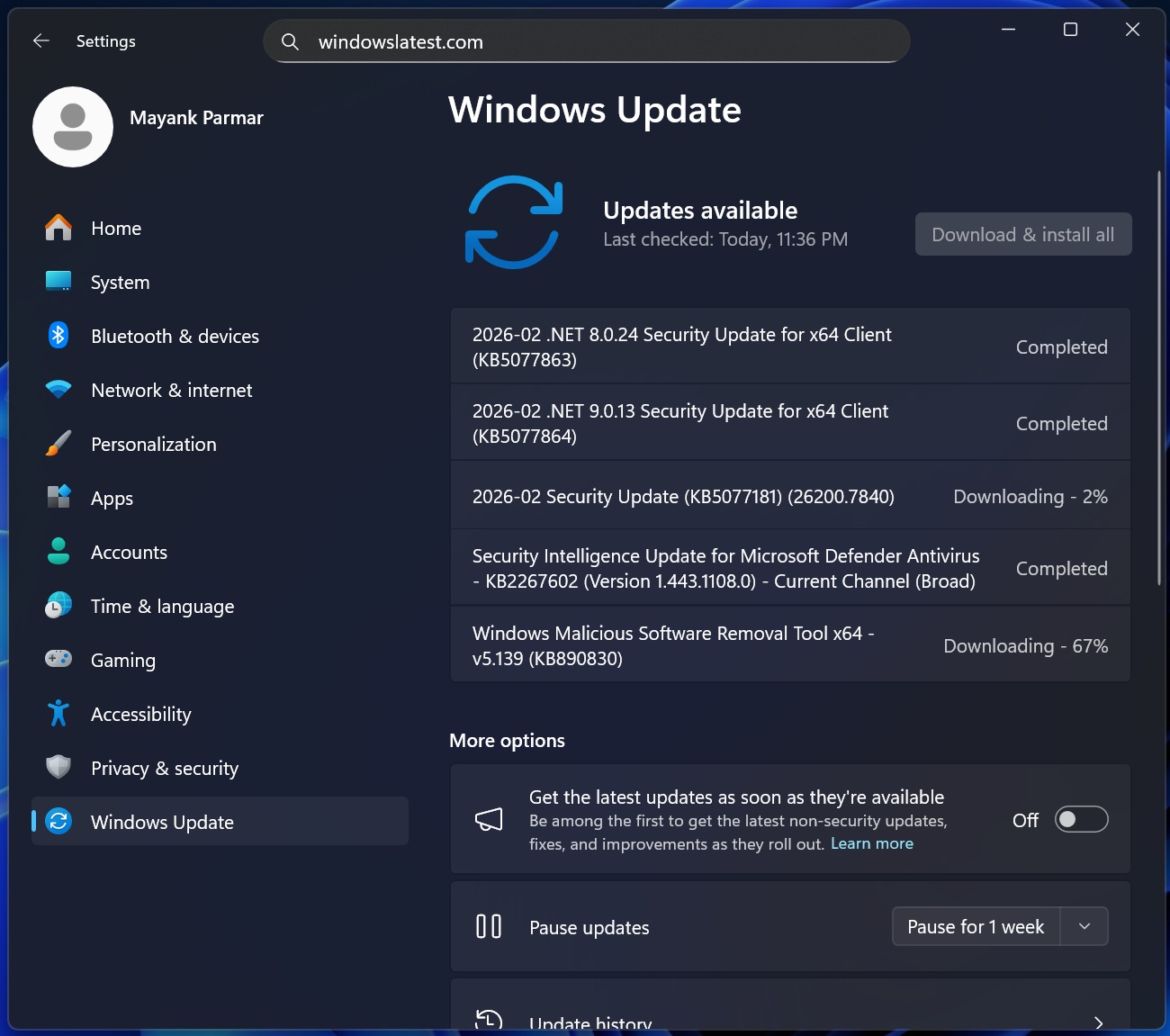
Windows Latest observed that the February 2026 Patch Tuesday shows up as “2026-02 Security Update (KB5077181) (26200.7840)” and takes approx 10 minutes to download at a 200 Mbps internet connection.
After installing KB5077181, your system bumps to Windows 11 Build 26200.7840 (25H2), and Build 26100.7840 on version 24H2.
Download Links for Windows 11 KB5077181
Windows 11 KB5077181 Direct Download Links: 64-bit and ARM-64 | Microsoft Update Catalog lets you download an offline installer (.msu), and if you run the .msu files, you can install the February 2026 Update without using Windows Update.
I don’t recommend using Microsoft Update Catalog unless you’ve issues with Windows Update, as Windows Update is easier and faster. Also, Update Catalog is useful for those who own multiple computers.
As for the size of Windows 11 February 2026 Update, WindowsLatest.com downloaded the update packages, extracted them, and they’re still over 4GB in size. For those unaware, Windows update installers are now larger than 4GB because Microsoft bundles local AI models, such as Phi, with monthly security updates.
| Build Number | Size | OS Version | Architecture |
|---|---|---|---|
| 26200.7840 | 4479.7 MB | Windows 11 25H2 | x64-based |
| 26200.7840 | 4183.4 MB | Windows 11 25H2 | arm64-based |
| 26100.7840 | 4479.7 MB | Windows 11 24H2 | x64-based |
| 26100.7840 | 4183.4 MB | Windows 11 24H2 | arm64-based |
These offline AI models are downloaded with the .msu offline installer even on unsupported PCs, but don’t worry, Microsoft won’t apply local AI models to PCs without an NPU with 40+ TOPs.
To download Windows 11 Build 26200.7840, open Settings > Windows Update, and check for updates. It takes approximately 10 minutes to download the update, and a single reboot to finish applying it. If you run into issues, you’ve approximately less than two weeks to uninstall the update.
Security updates cannot be removed after they’re installed for more than 10 days.
What’s new in Windows 11 Build 26200.7840 (25H2) / Build 26100.7840 (24H2)?
1. Microsoft begins rolling out Apple Handoff-like UX for Windows 11 and Android with ‘Cross Device Resume’ (rolling out)
Windows 11’s Resume, which is similar to Apple Handoff, has been a thing for a while now. Some of you might have noticed it in Settings > Apps > Resume, but it’s quite limited in functionality.
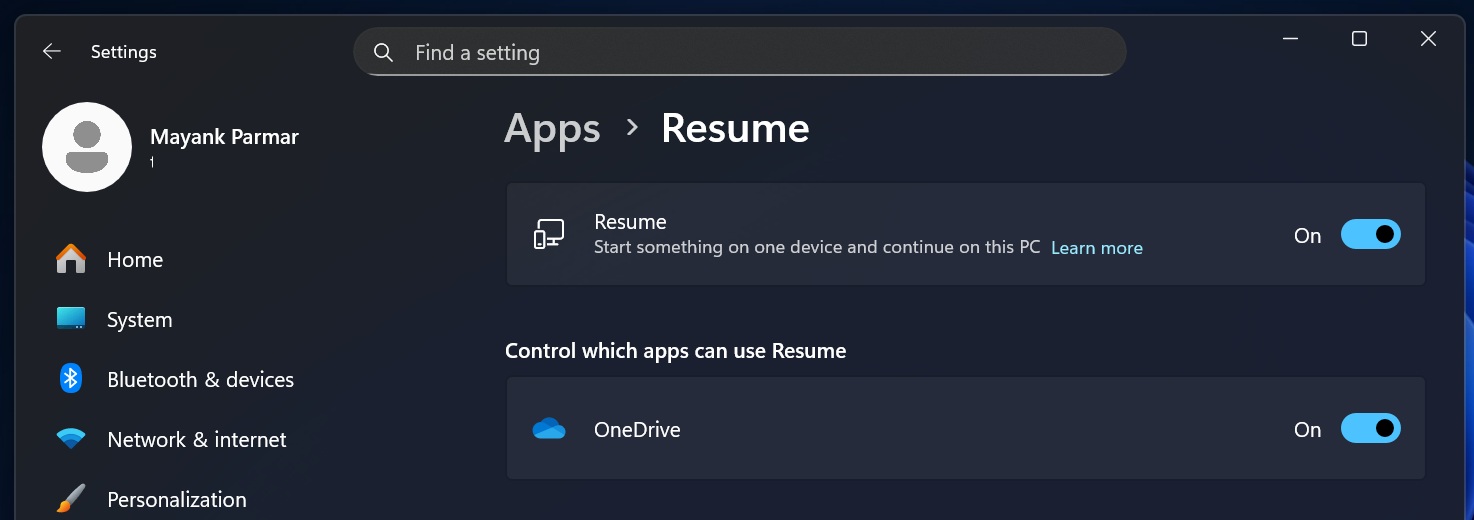
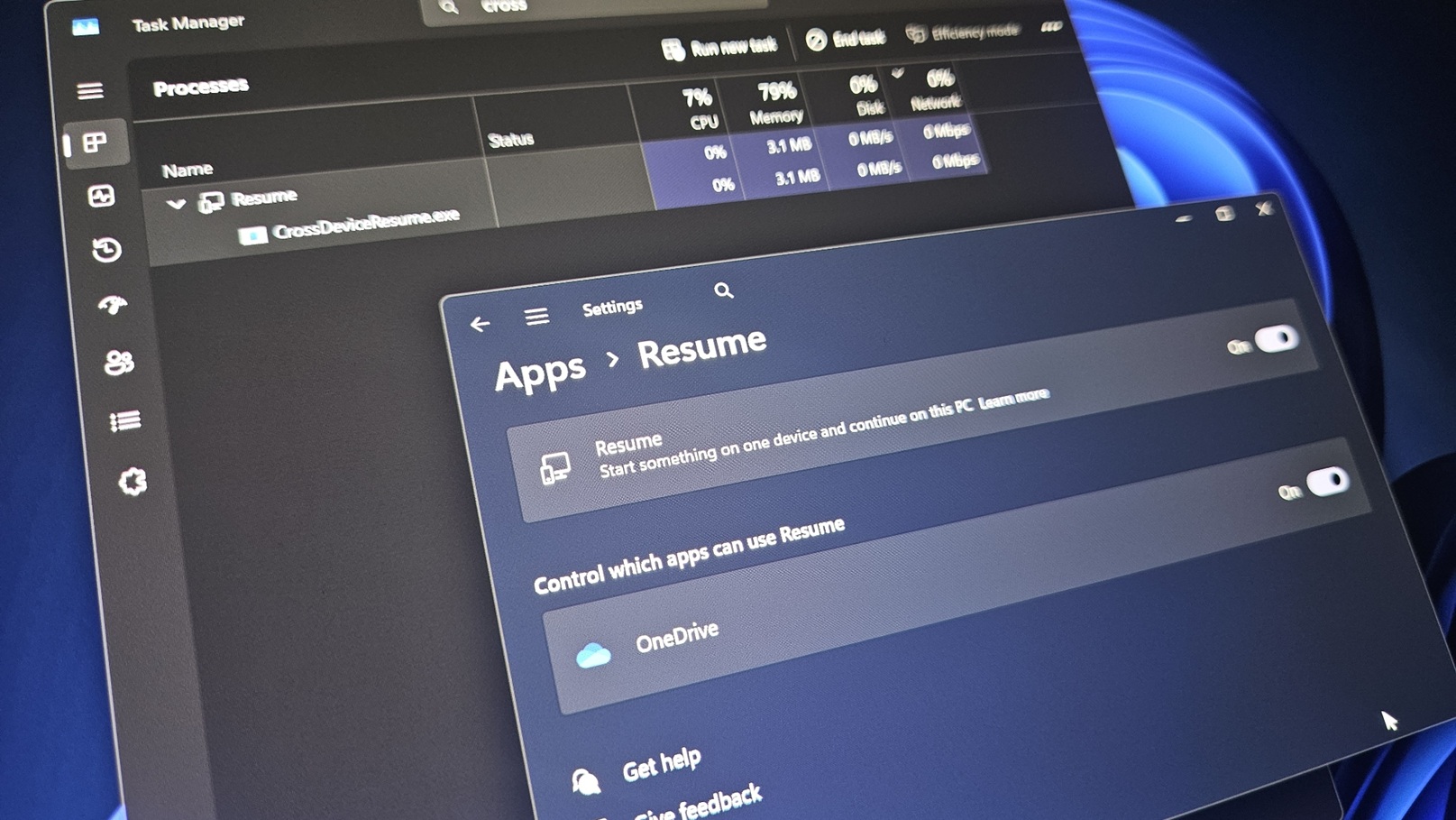
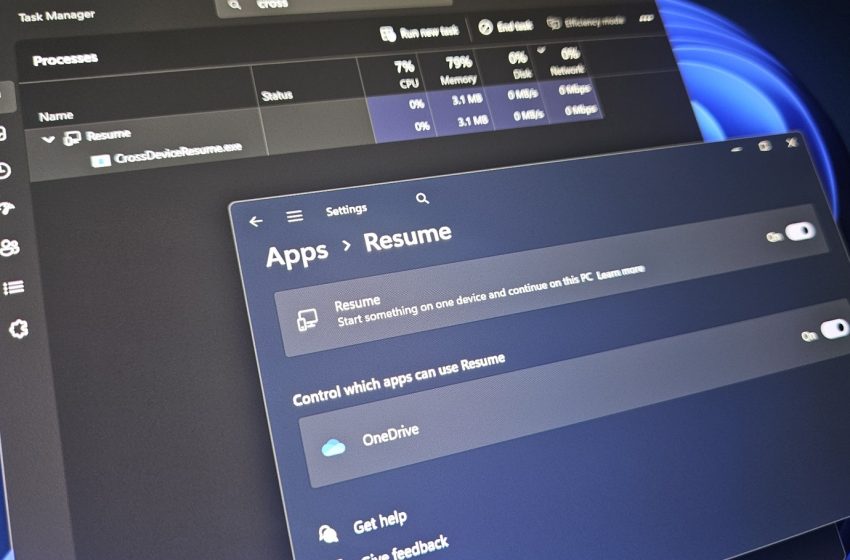
Also, if you frequently open Task Manager, you might observe that a process called CrossDeviceResume.exe (Resume) is always running in the background. I’ve got it on my PC with a fresh installation of Windows 11:
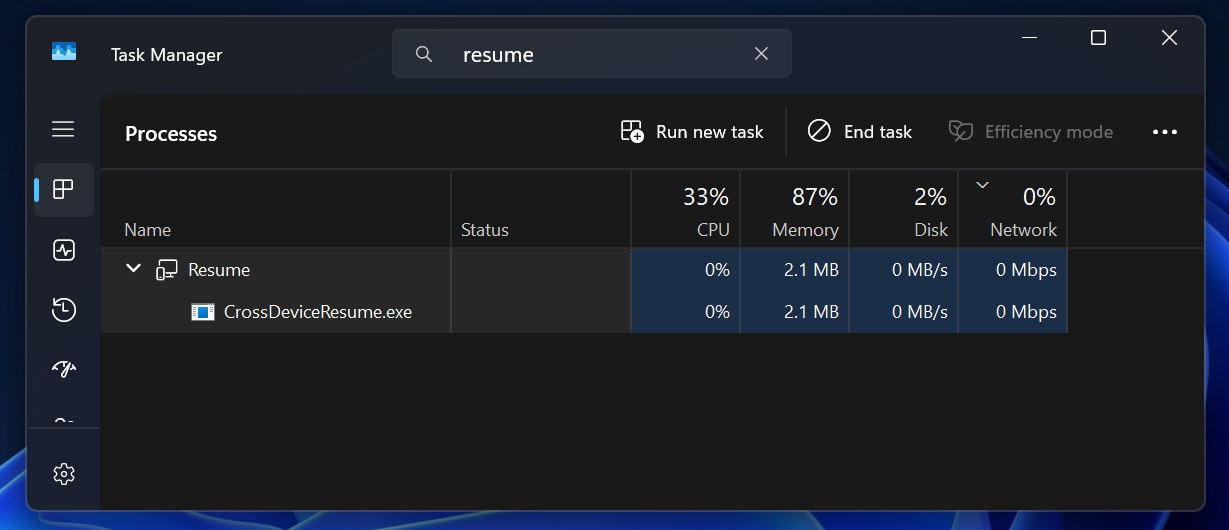
The idea of the Resume feature is to start something on one device and continue on the current PC. It only sounds interesting on paper, since the Resume feature has been mostly useless because it only works with OneDrive files. This means that if you edit or read a document in the OneDrive app for Android, you can resume it on your PC.
This is similar to Apple’s Handoff / Continuity, where you can resume iPhone tasks directly on your MacBook.
Thankfully, Windows 11 KB5077181 finally makes the feature more useful. Now, you can also resume Spotify playback, continue working in Word, PowerPoint, or Excel, and even continue a web session if you were using a support browser, such as Samsung or Vivo browser.
The list of supported phones includes:
- HONOR
- Samsung
- vivo
- Xiaomi
- OPPO
After installing Windows 11 KB5077181, if you’ve access to the new Resume feature, the Windows taskbar will show an alert to resume the playback.
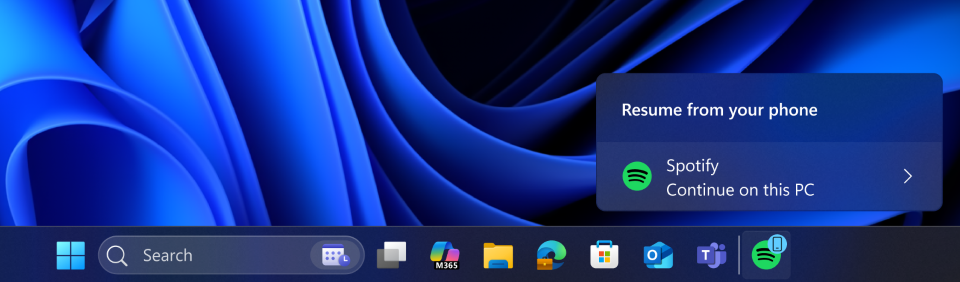
You’re also going to observe a similar behaviour if you use Microsoft 365 Copilot on your Android and resume it on your PC.
However, this feature does not work with offline files, and it’s still rolling out.
2. Windows MIDI Services improvements (rolling out)
MIDI is an old technology, but almost everybody uses MIDI if they make music, and Microsoft wants to make the Windows experience even better for music creators. Windows MIDI Service has been around for decades now, and it sits between your music apps and your MIDI gear.
For the past several months, Microsoft has been testing several improvements for Windows MIDI. After Windows 11 KB5077181, Windows is getting better support for both MIDI 1.0 (the classic standard most apps use) and MIDI 2.0 (newer, richer messaging).
This improves compatibility by supporting both WinMM and WinRT MIDI 1.0 apps and translating where needed, so older apps keep working while Windows moves forward.
It also adds support for Shared MIDI ports across apps, which means multiple apps can use the same MIDI device at the same time instead of one locking it.
3. Smart App Control (rolling out)
Windows 11 comes with a feature called ‘Smart App Control,’ which blocks unauthorized apps from running on your PC. It’s a safety/security feature, and it’s quite useful for some of us, such as our grandparents or our children, who are not careful with internet downloads.
However, Smart App Control experience can be bizarre if you’re an advanced user, especially if you use too many apps. For example, Windows Latest found that Smart App Control (SAC) can block popular games, anti-cheat engines, and more. Last month, SAC blocked Asus Armoury Crate, which is essential on devices like the Xbox ROG Ally.
Until now, Microsoft required you to clean install the operating system if you wanted to play with Smart App Control settings. If it’s turned off, and you want to turn it on, but you’ve been using Windows for a long time, all Smart App Control options will be grayed out, similar to what I have on my PC below:
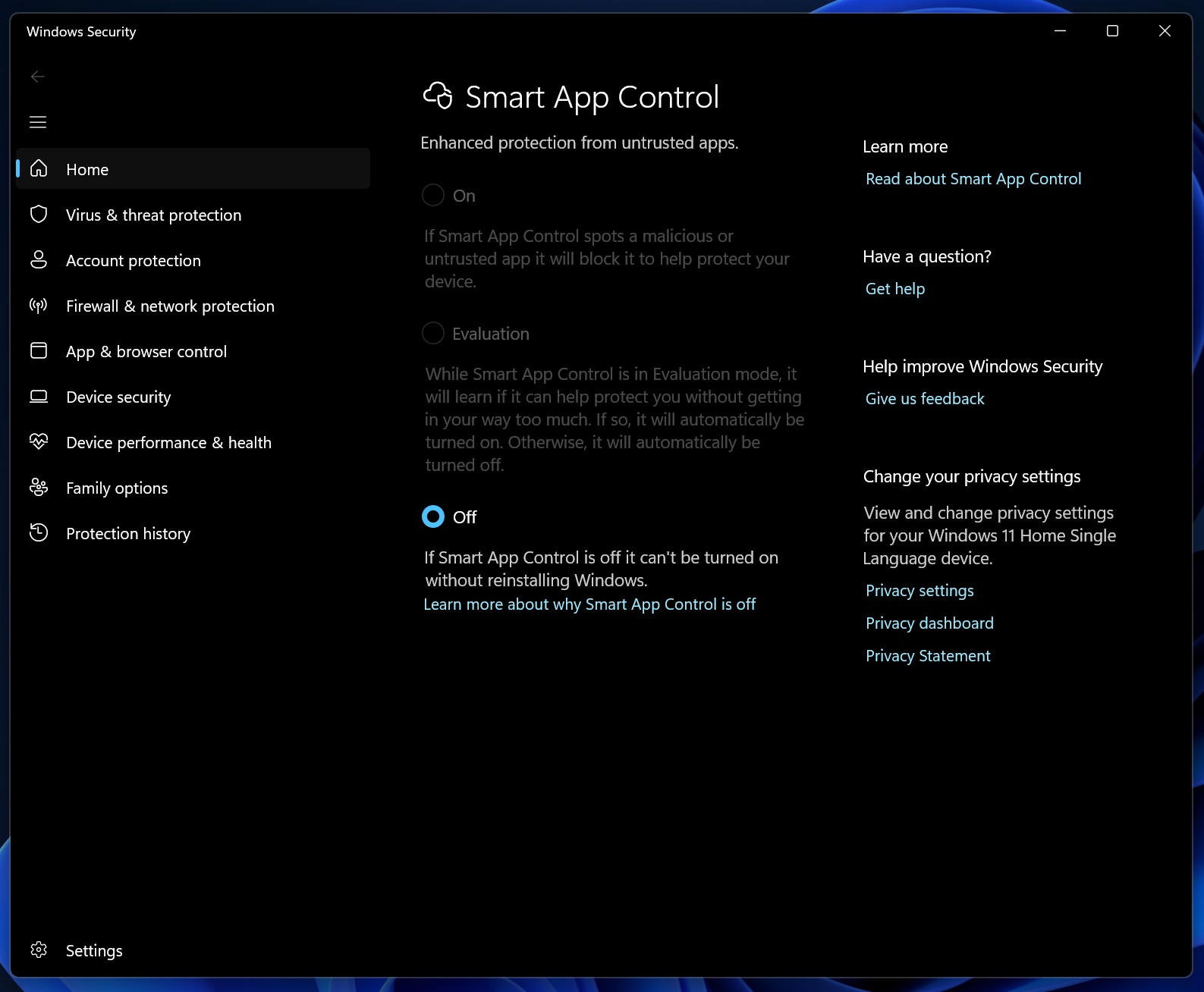
As you can see, I can’t turn on “Smart App Control,” and the Windows Security app warns me that I need to reinstall Windows. Likewise, if Smart App Control is already turned on, you won’t be able to turn it off unless you reinstall Windows 11, which easily takes over one hour in the best-case scenario.
In Windows 11 KB5077181, you can now turn Smart App Control (SAC) on or off without reinstalling the OS. If you go to Windows Security > App & Browser Control > Smart App Control, you will notice the options are not grayed anymore. But the catch is that I still don’t see it on my device yet.
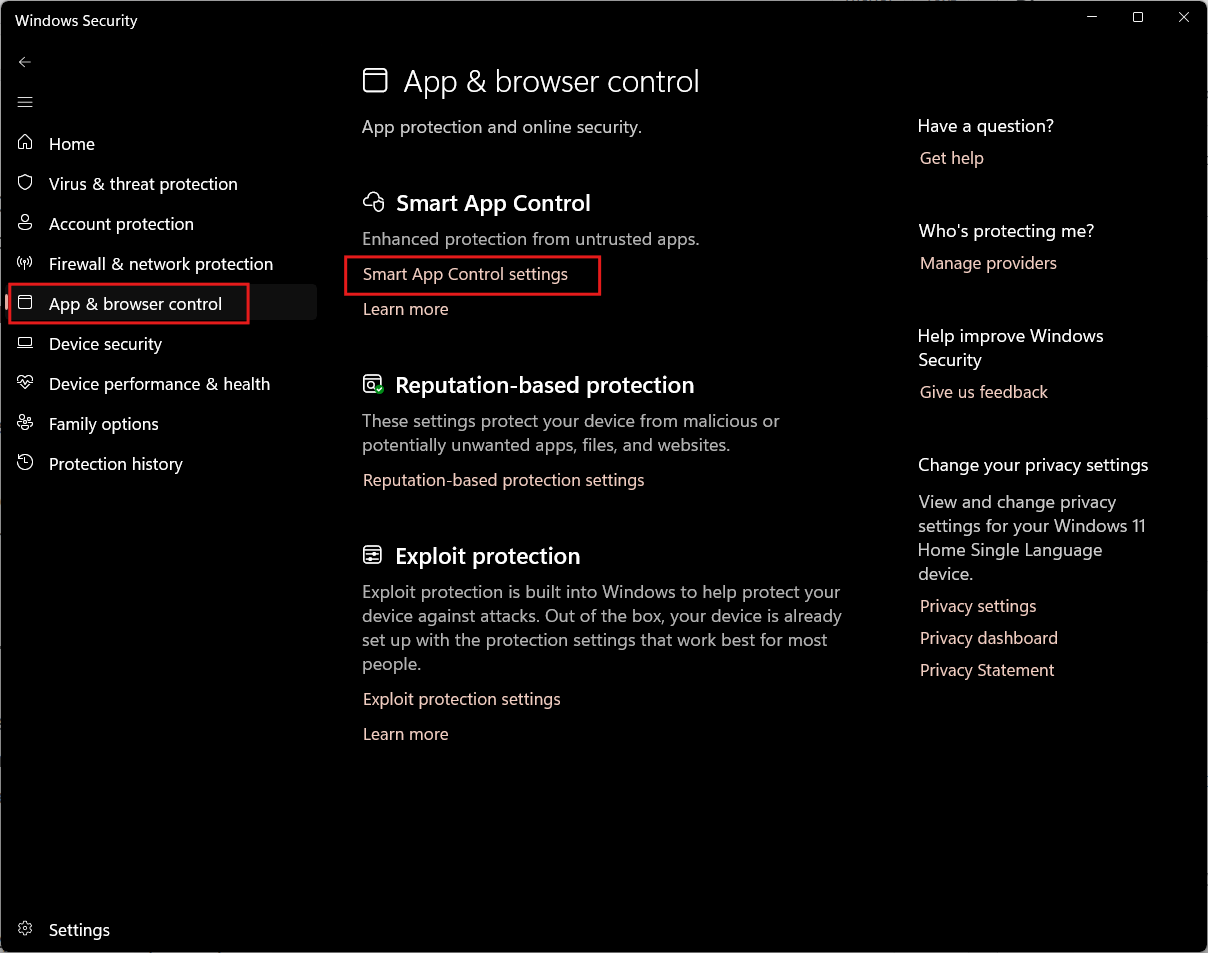
Microsoft tells me that the feature is still rolling out, but I am starting to wonder if you will still need to clean install Windows once for the changes to take effect. I’ve reached out to Microsoft for details, and I’ll update this story soon.
For now, you can check whether you can enable or disable SAC in the Windows Security App.
4. New Start menu and colourful battery icons rolling out widely now
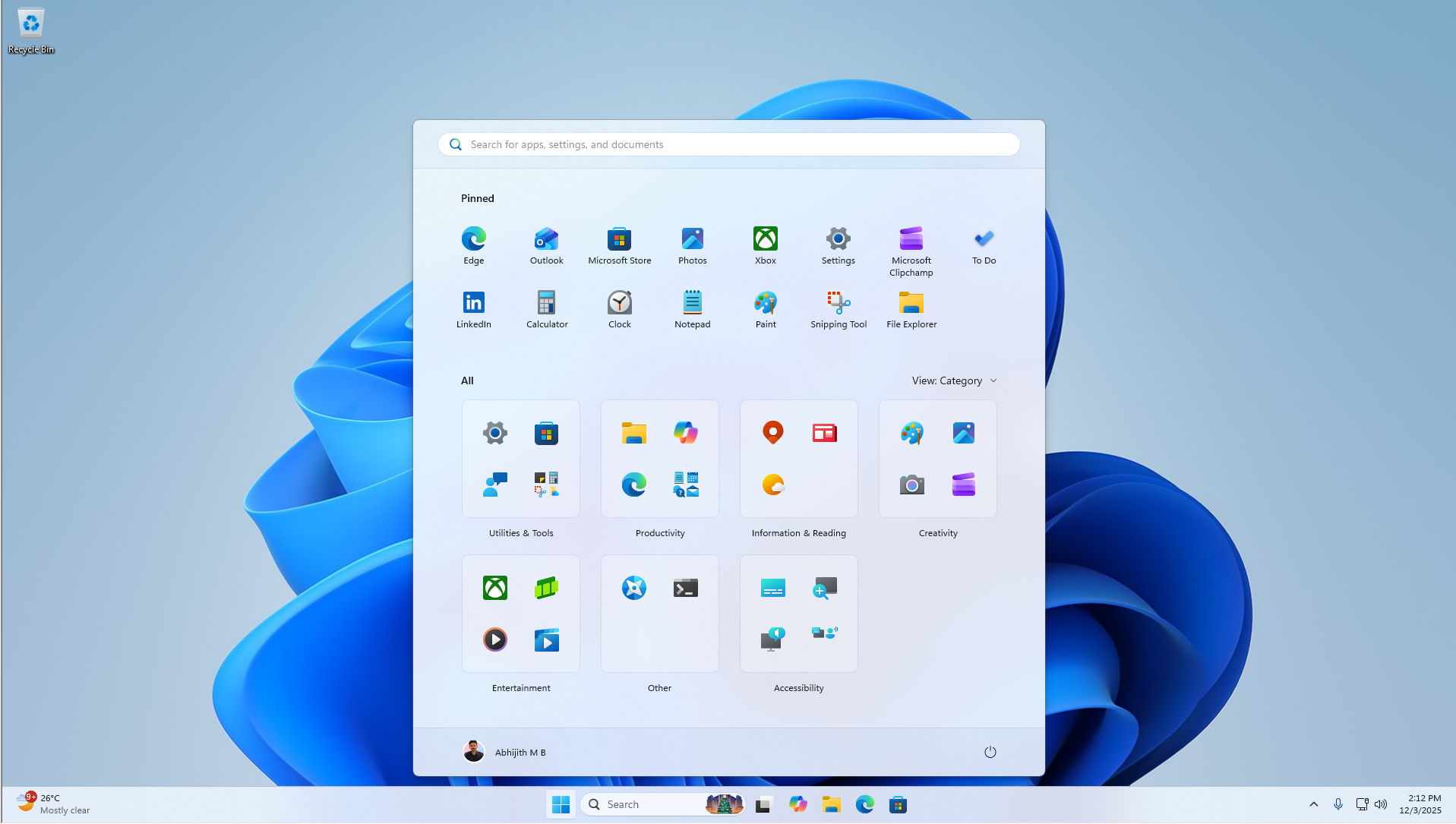
Windows 11 has been testing a new Start menu for almost a year now, but it’s still not available to many users. That should change with Windows 11 KB5077181, which turns on the Start menu and colourful battery icons on the taskbar for more consumers.
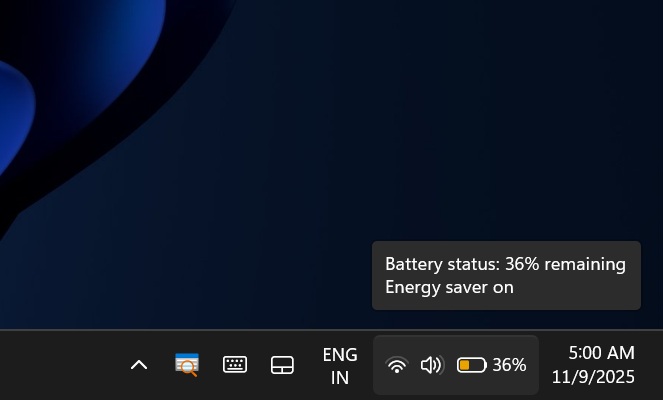
Microsoft told Windows Latest that it began wider rollout of the new Start menu with the January 2026 Update, and it’s now expanding to more devices with the February 2026 Update.
I don’t think the new Start menu needs an introduction at this point, but for those unaware, the new UI offers a single-page layout that reduces the number of clicks it takes to find your apps. All apps appear on the home page of the Start menu, and you can switch between different layouts for the ‘All apps’ list.
It’s also possible to remove the Recommended feed from Settings > Personalization > Start.
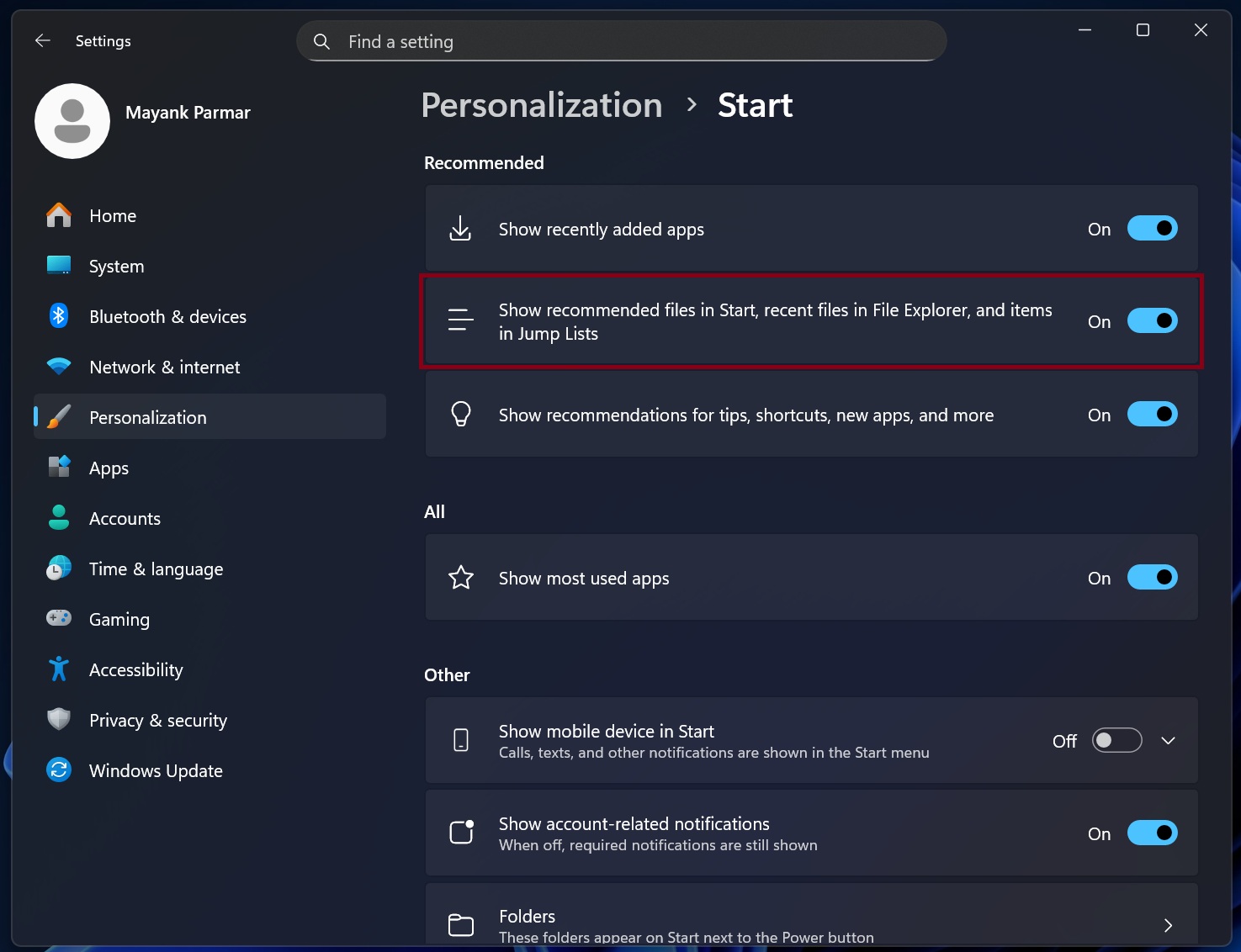
But if you turn off “Recommended” feed in the Start menu, you’ll also lose “Recent” files in File Explorer and Windows taskbar Jump list.
There’s a new iOS-like App categories feature, but you cannot customize or reorganize apps in these pre-defined categories. For example, if your apps are in the ‘Other’ category, you cannot manually move them to another category, such as Music or Tools.
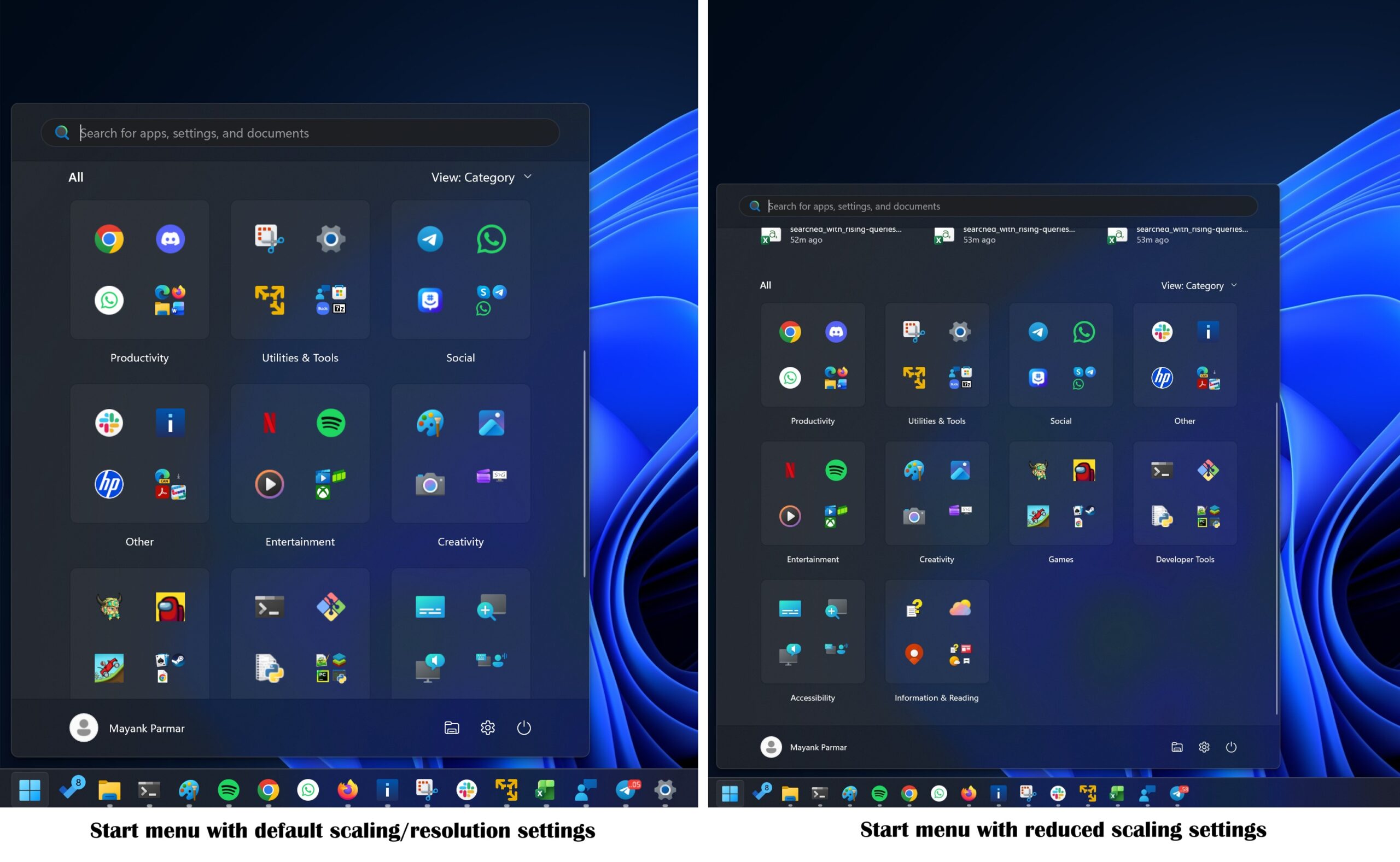
This new Start UI also covers almost 70% of the screen on some PCs, and Microsoft says it’s aware of the concerns, but there are no plans to add a ‘resize’ control.
5. Settings get a new Device Card.
If you want to quickly view your PC specs or share them with a friend, there’s a new “Device Card” on the Windows Settings homepage. It’s included in Windows 11 KB5077181, but it’s also rolling out gradually. Here’s a screenshot of what it looks like in my Settings app:
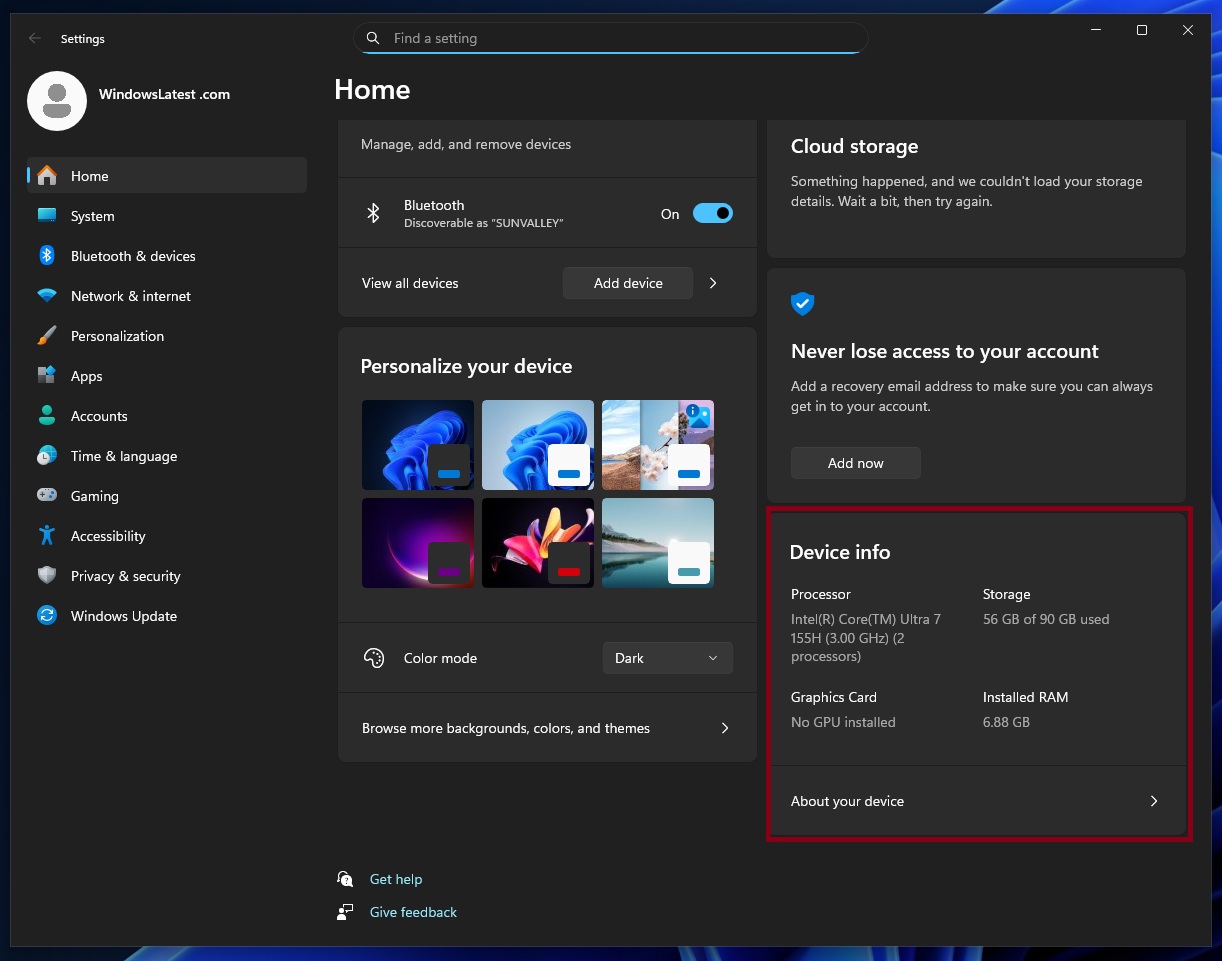
This pulls details from Settings > System > About, such as the available storage space or installed RAM.
6. Windows 11’s Storage Settings now require admin rights to open
Windows Latest observed that Storage in the Settings app now requires admin permission to open. This means you’ll see a User Account Control (UAC) prompt, which blocks unauthorized users from accessing certain areas of the OS without an admin account.
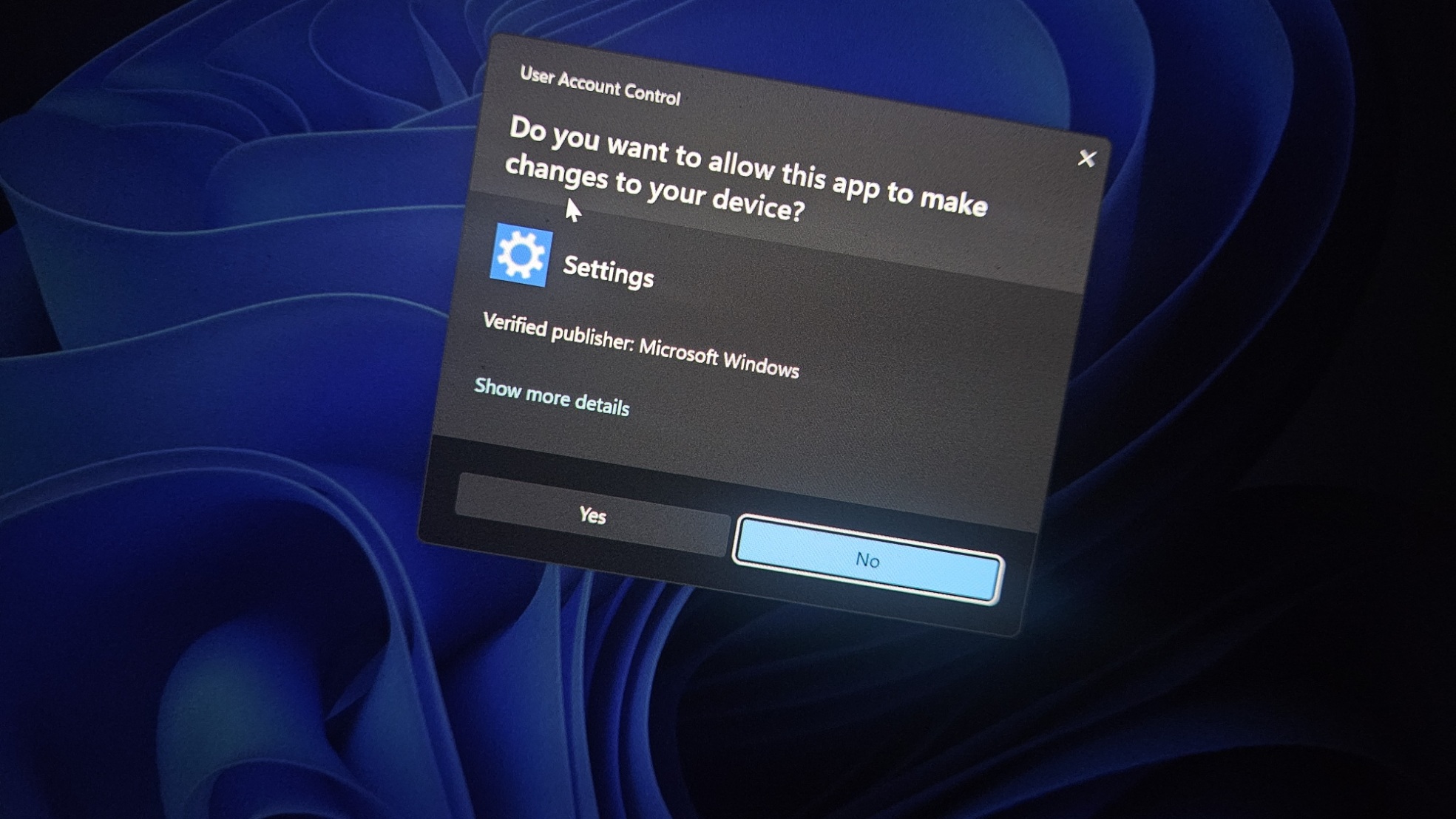
UAC prompt for Storage Settings is available immediately after installing Windows 11 KB5077181, and it’s a security improvement. However, our tests revealed that it causes problems when you use Storage cleanup to purge certain folders in the Temporary.
Windows Latest found that it’s no longer possible to use Storage Settings to remove admin-sensitive files like Windows Update from Temporary files. As you can see in the screenshot, “Windows Update files” are missing from my Temporary files in System > Storage.
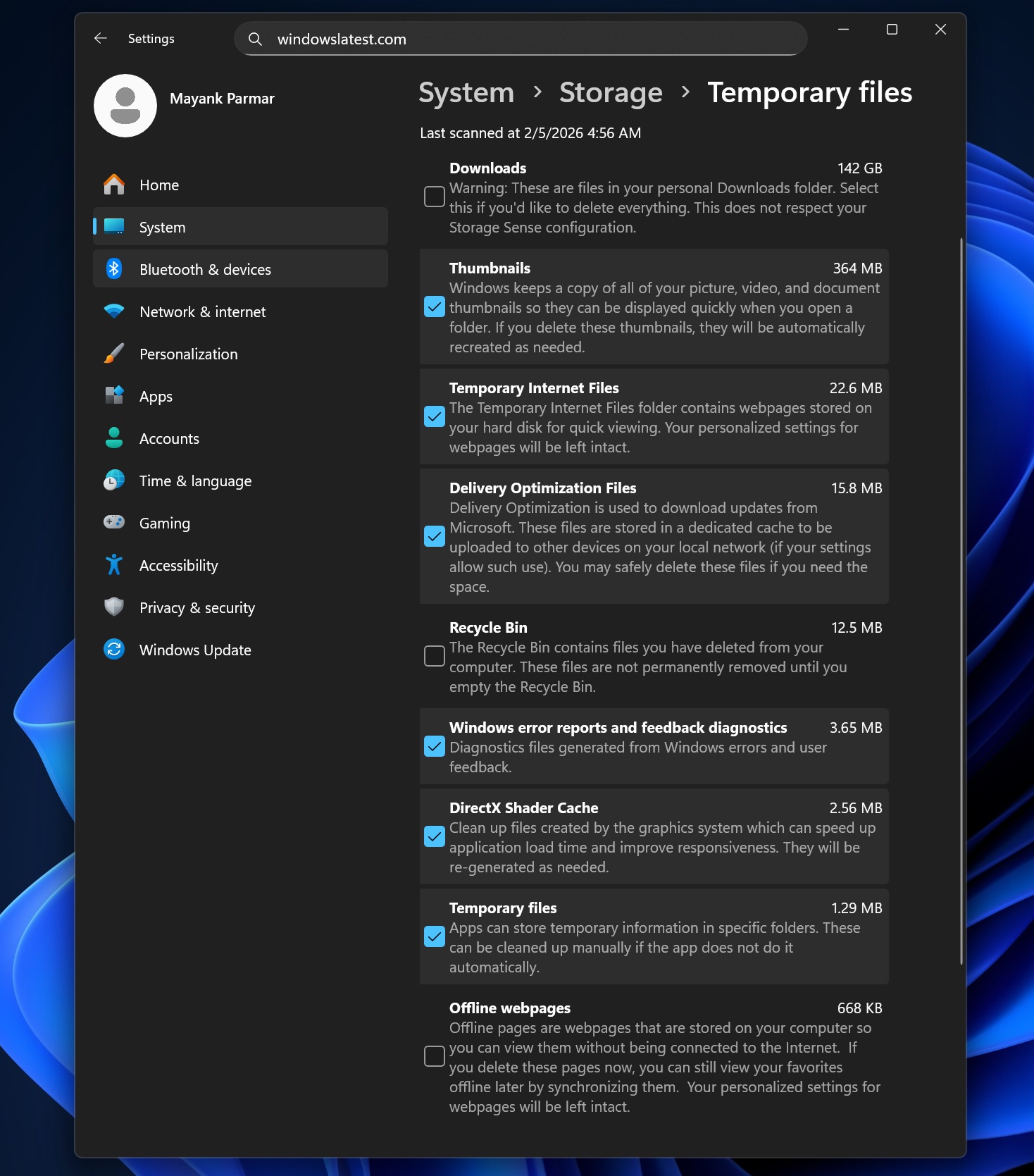
It’s unclear whether Microsoft is aware of the reports, but if you want to purge Windows Update logs or files, you need to use the legacy Disk Cleanup tool until Microsoft releases a patch.
7. Black screen on PCs with Nvidia GPU is now fixed
Windows Latest can confirm that Microsoft patched an issue that causes a black screen when you use one of the Nvidia GPUs. This issue was introduced with Windows 11 KB5074109 (January 2026 update with Build 26200.7840), and it causes a black screen when you start your PC or briefly before you play a game.
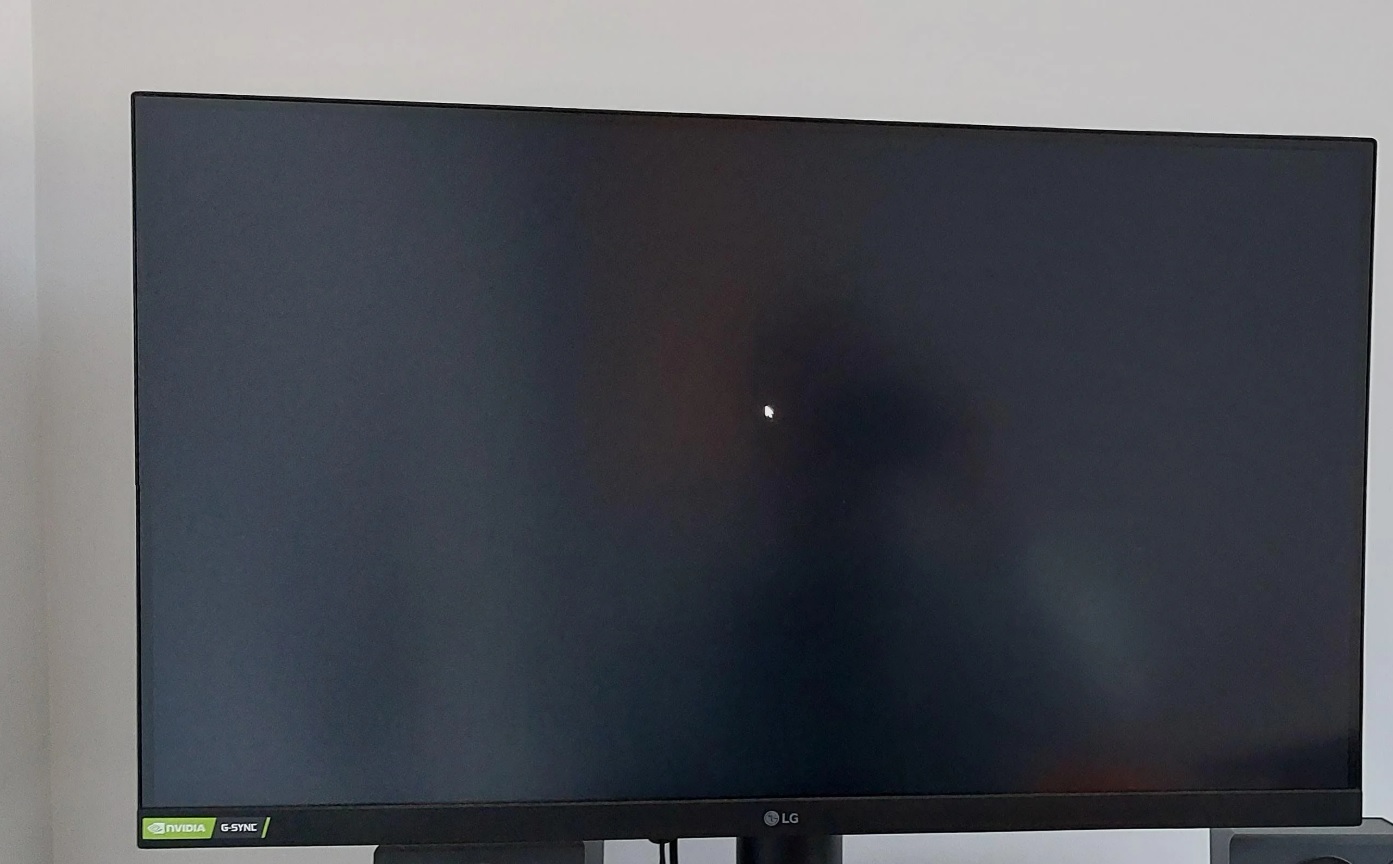
Thankfully, it’s fixed with today’s update. Here’s the full list of improvements and fixes in Windows 11 KB5077181:
- Microsoft is adding a new setup screen for Voice Access UI/UX. This makes it easier to use Voice Access, which allows you to control your computer using your voice.
- For those who use peripheral fingerprint sensors, it’s now possible to enable Windows Hello Enhanced Sign-in Security (ESS), which significantly improves security.
- A bug that cuts off dialogs in the Start menu has been fixed.
- Microsoft fixed an issue that causes explorer.exe to crash after you sign in. This issue also made the taskbar and Start menu unresponsive.
- File Explorer responsiveness has been improved when you navigate in network locations.
- A bug that broke Windows Sandbox with 0x800705b4 error has been fixed.
Last but not least, Microsoft has also started preparing desktops for a Full-screen gaming experience (FSE). That’s because Windows now includes a new code that can correctly determine if the device is eligible for FSE. It’s rolling out with the February 2026 Update.
Microsoft also published new Secure Boot certificates via Windows Update, but it’s rolling out gradually.
What about the known issues in Windows 11 KB5077181?
Microsoft told Windows Latest that it’s not aware of any new issues in Windows 11 KB5077181, but that doesn’t mean the update is bug-free.
In fact, some of you will definitely run into installation issues with Windows 11 KB5077181, as it always happens with a subset of users. And if you’re one of the unlucky users, I’ve one sure-shot workaround.
When the February 2026 Patch Tuesday fails to install, download and install the Media Creation Tool from Microsoft’s website, and perform an in-place upgrade. In Media Creation Tool, you need to make sure you choose to save your files. When the option is toggled on, you do not lose Settings, apps, or data, and the update will smoothly install.
But aside from the installation issues affecting a small subset of PCs, we’re not aware of any major issues with the update, at least for now.
If you run into problems, let me know in the comments below and I’ll pass on the report to Microsoft.
First Appeared on
Source link