
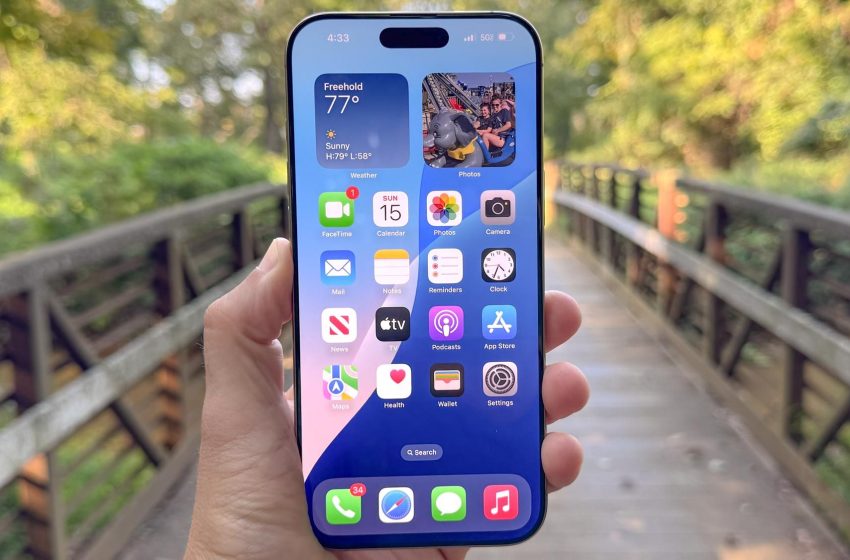
How to turn any audio clip into an iPhone ringtone
It used to be the case that setting a unique ringtone on your iPhone meant learning your way around the Tones Store, downloading a third-party app, or figuring out GarageBand. Now, however, you can grab any short audio clip (under 30 seconds) from anywhere and use it as a ringtone. Unless you know where to look, though, it’s a feature that’s easy to miss.
That’s where this guide comes in. By following the steps below you can easily assign a custom ringtone via the Files or Voice Memo apps. Just make sure you have iOS 26 installed and that your audio clip is under 30 seconds. If it isn’t, you’ll need to trim it first — or find a ready-made short sample from a site like Pixabay.
1. Download a sample
If you come across a MP3 or M4A audio sample that you’d like to use as a custom ringtone, save the audio to the Files app on your iPhone. It will automatically end up in the Downloads folder in the Files app.
2. Select the audio
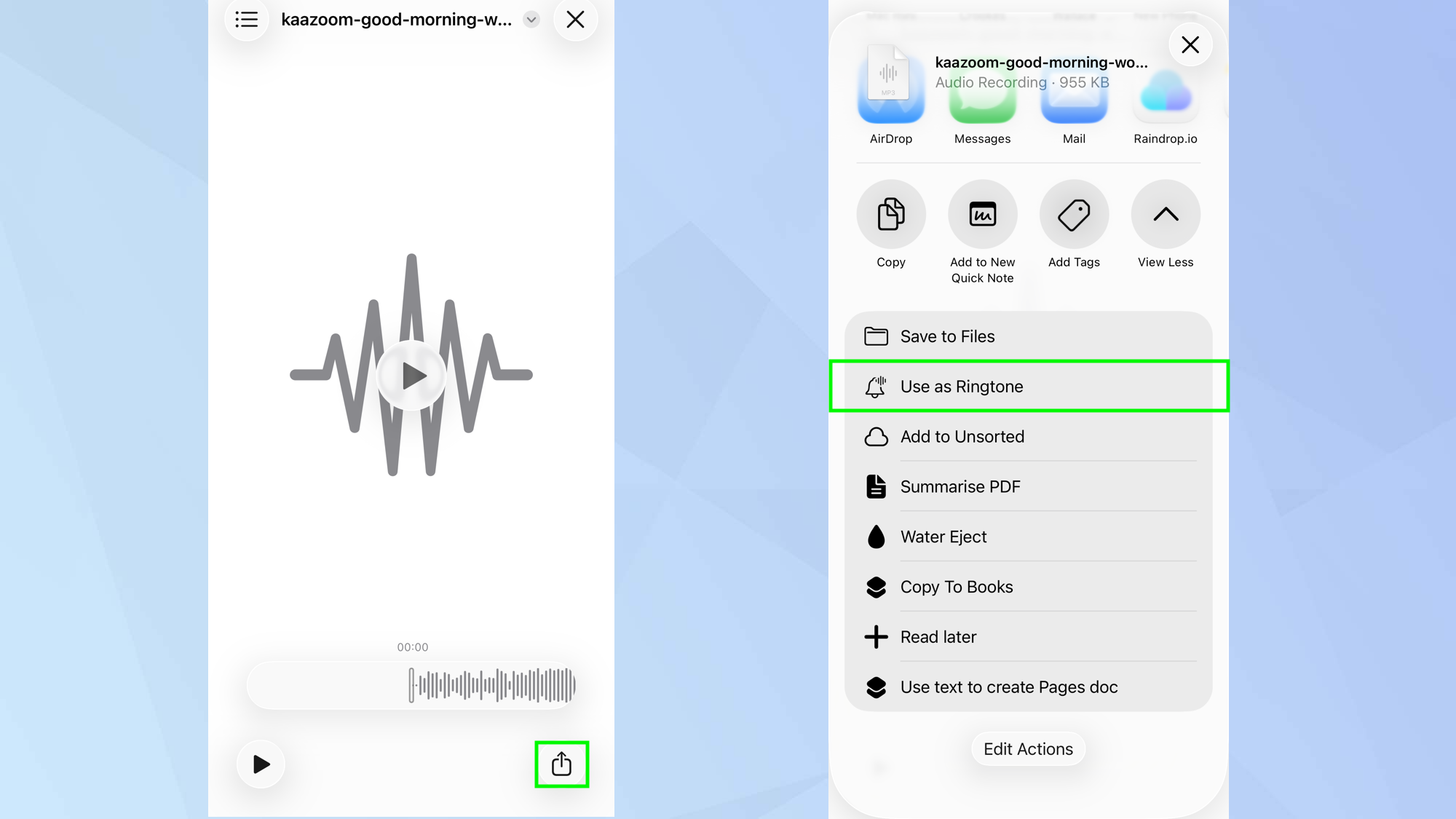
Open the Files app and tap the downloaded audio. Next, tap the Share icon and select Use as Ringtone (scroll to see this option).
3. Use a Voice Memo (another method)
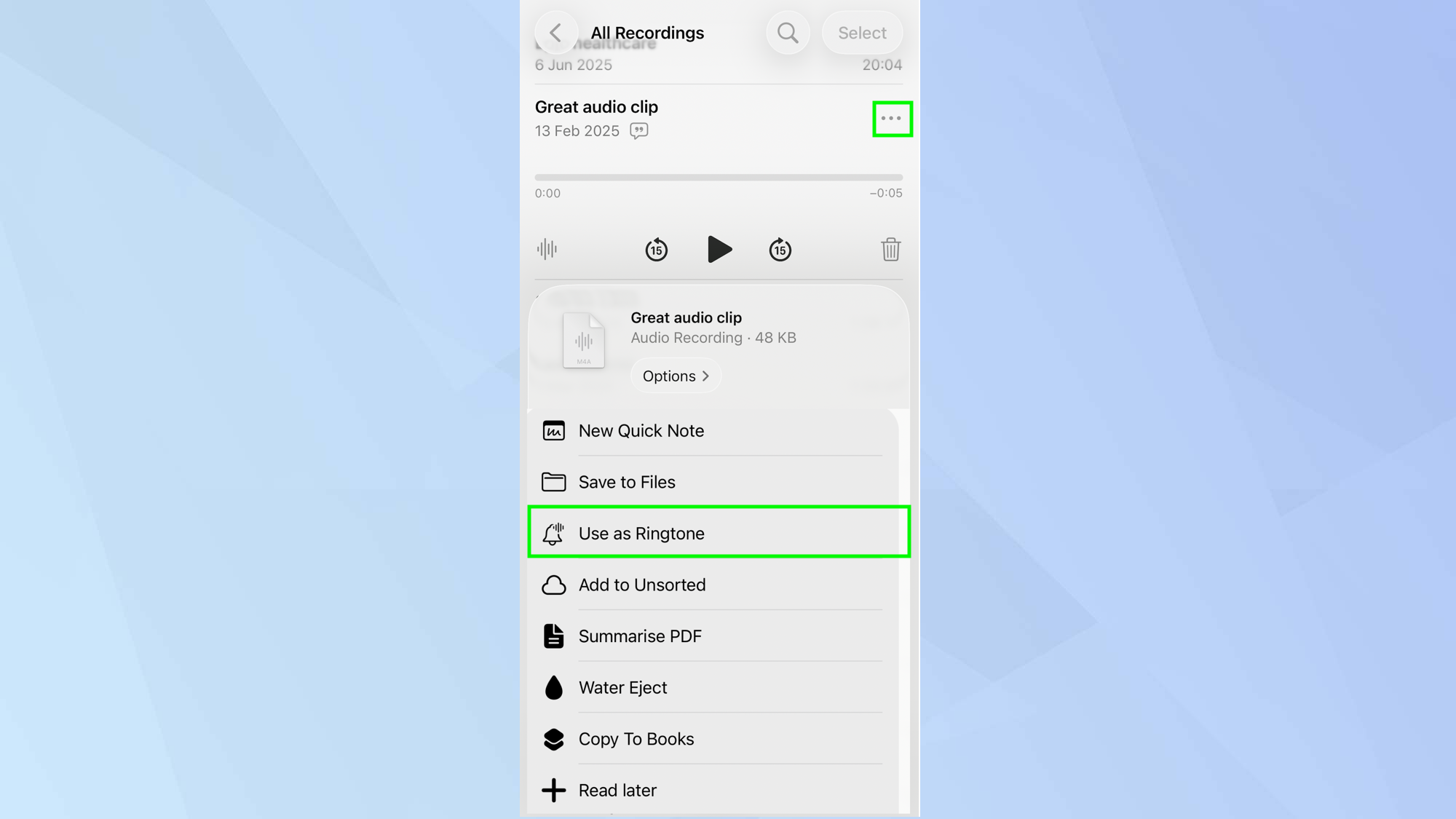
You can also use audio contained in your Voice Memo app. Tap the three-dot menu icon then tap the Share icon and select Use as Ringtone.
4. Choose the audio
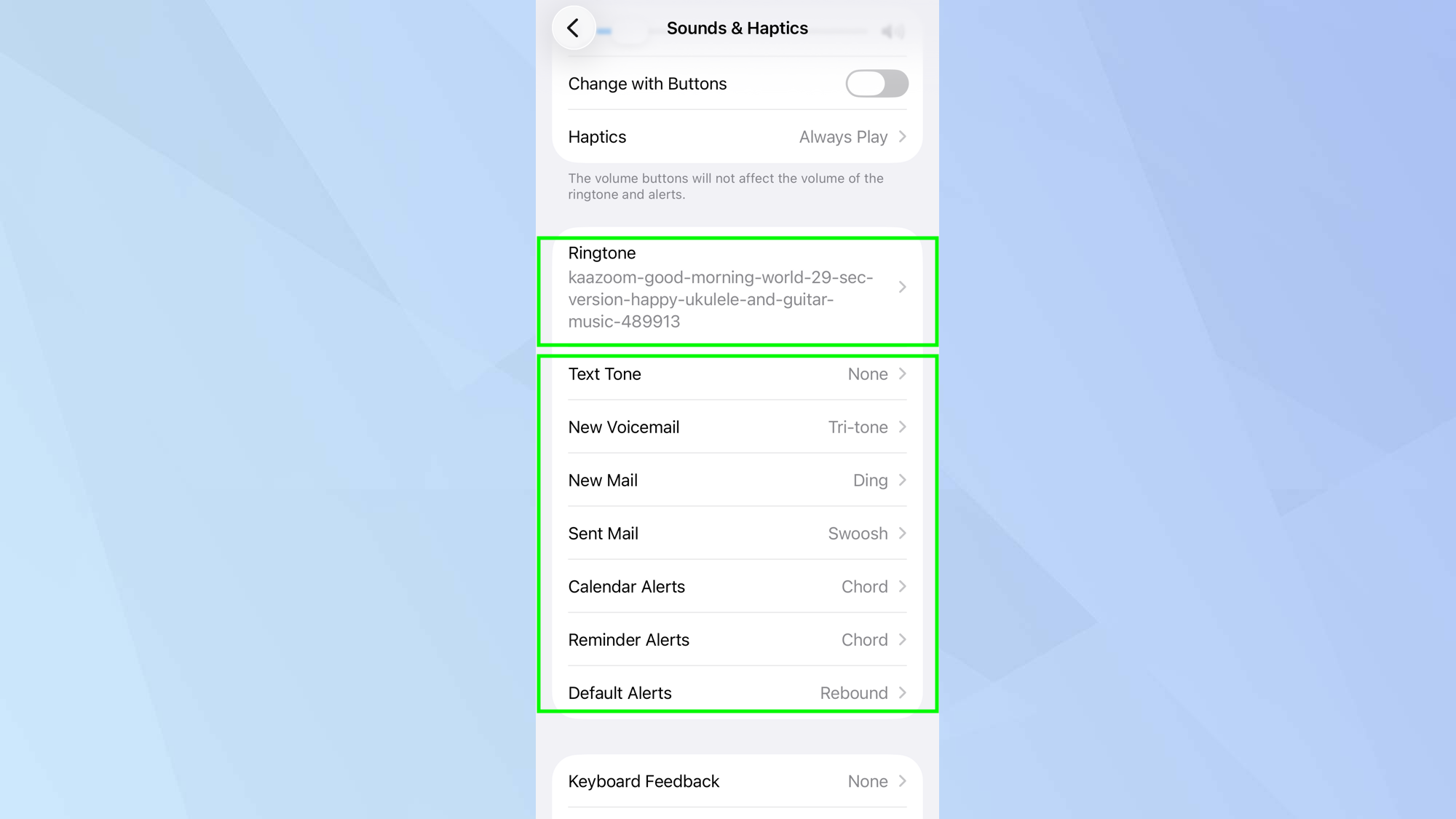
In either case, you’ll be automatically taken to the Settings app where you can ensure the audio is selected. This is now set as your Ringtone.
You can set the audio for other alerts if you open the Settings app and tap Sounds & Haptics.
Just tap Text Tone, New Voicemail, New Mail, Sent Mail, Calendar Alerts, Reminder Alerts or Default Alerts and choose the sample.
Check out more hidden iPhone tips below!
Follow Tom’s Guide on Google News and add us as a preferred source to get our up-to-date news, analysis, and reviews in your feeds. Make sure to click the Follow button!
Article continues below
More from Tom’s Guide
First Appeared on
Source link