
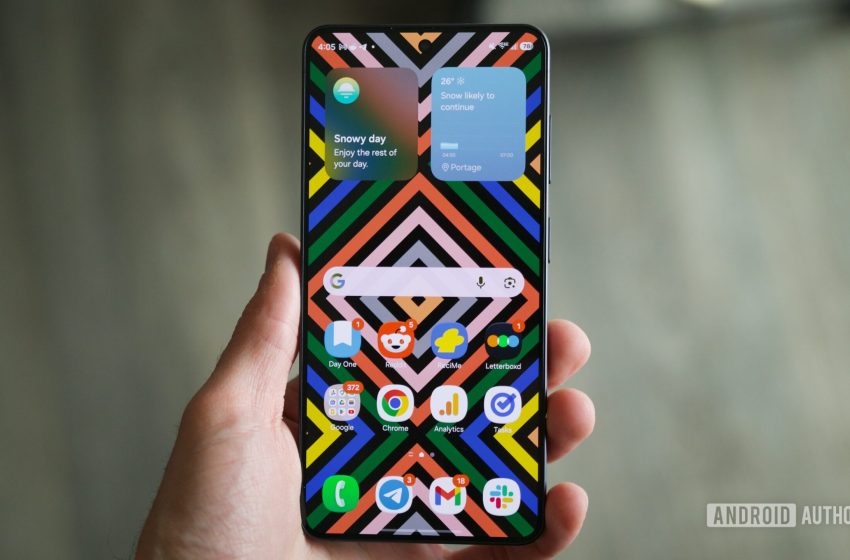
Just get a new Samsung phone? Turn off these 6 features ASAP
Joe Maring / Android Authority
There’s a lot to do whenever you get a new Android phone. There are apps to download, accounts to sign into, photos to transfer, and so on. No matter how many times I’ve done it, it’s always a chore.
This is especially true with Samsung phones. Samsung’s One UI software is chock-full of features and settings, and while some are great, others annoy me to no end. Between Samsung Keyboard, screenshot gestures, and more, there are a lot of Samsung features I’ll never understand.
If you’ve got a new Samsung phone yourself, whether it’s a Galaxy S26 or another model, here are the first six features I always disable as soon as I get a new Samsung Android phone.
What do you think is the worst Samsung software feature?
80 votes
Get rid of Samsung Keyboard
The very first thing I recommend doing is getting rid of Samsung Keyboard. This is the default keyboard installed on every new Samsung device, and as I’ve written about before, Samsung Keyboard is a dumpster fire. It’s difficult to type on, has horrendous auto-correct, bad voice typing — the list goes on.
Rather than suffer through endless typos that’ll have your friends debating removing you from all your group chats, you should disable Samsung Keyboard and replace it with Gboard ASAP. To do this:
- Download Gboard from the Play Store.
- Open the app.
- Tap Enable in settings.
- Tap the toggle next to Gboard.
- Tap OK.
- Tap Default keyboard.
- Tap Gboard.
You don’t have to use Gboard if there’s another keyboard you’d rather use. The important thing is that you fire off Samsung Keyboard into the sunset and use literally anything else instead.
Turn off split notifications and Quick Settings
Equally annoying is how modern Samsung phones split the notification panel and Quick Settings between two separate pages — forcing you to swipe from the upper-left corner for the former and the upper-right for the latter. Samsung isn’t the only Android brand that does this, but that doesn’t make it any less frustrating.
The good news is that you can easily kill this split design. Here are the steps to follow:
- Swipe down from the upper-right corner to view your Quick Settings.
- Tap the pencil icon to enter edit mode.
- Tap Panel settings.
- Tap Together.
Now, swiping down from anywhere at the top of your screen shows your Quick Settings at the top and your notifications below them — just how it should be on every Android phone.
Disable Edge Panels
Edge Panels have been a staple Samsung feature for years. I know some people love swiping from the edge of the screen for favorite app shortcuts, but I’ve always found it to be more of a nuisance than anything else. That’s why I always disable Edge Panels on every new Samsung phone.
Like most of the features here, turning off Edge Panels is pretty simple.
- Open the Settings app.
- Tap Display.
- Scroll down the page.
- Tap the toggle next to Edge panels.
Just like that, the Edge Panels shortcut on the right edge of the screen is gone, so you won’t accidentally open it multiple times throughout the day (like I always do before turning it off).
Toggle off Samsung Wallet shortcuts
Edge Panels isn’t the only home screen shortcut enabled by default on Samsung phones. At the bottom of all Samsung phone home screens is also a Samsung Wallet shortcut. If you use Samsung Wallet, having that shortcut to swipe up and access your credit/debit card is great! But if you’re like me and don’t use Samsung Wallet, it’s a pain in the butt.
If you’re also fed up with Samsung Wallet’s constant presence on your home screen, you can turn it off — it’s just a little tricky to figure out.
- Open the Samsung Wallet app on your phone.
- Tap Continue.
- If prompted, enter your Samsung account password.
- Allow phone permissions.
- Confirm your PIN or fingerprint if prompted.
- From the Samsung Wallet home screen, tap the three dots in the upper-right.
- Tap Settings.
- Tap Quick access.
- Tap Swipe up gesture.
Here, you’ll see toggles for three different Samsung Wallet swipe up gestures — including Lock screen, Home screen, and Screen off. You can pick and choose which ones you want to disable/keep enabled, but I’d recommend turning all of them off if you don’t use Samsung Wallet.
Fix lock screen notifications
If you want to change this (you will), follow these steps:
- Open the Settings app.
- Tap Notifications.
- Tap Lock screen.
- Tap Cards (it’s set to Icons by default).
With this fixed, you’ll now see full notification banners in the center of your lock screen, making it much less likely you’ll miss an important text or email when glancing at your phone. It’s ridiculous that this isn’t the default notification appearance on Samsung phones, but at least it’s easy enough to fix.
Deactivate the screenshot swipe gesture
Last but not least is Samsung’s screenshot swipe gesture. This is enabled by default and lets you swipe your hand along the edge of your screen to capture a screenshot. It might sound like a nifty gesture on paper, but in reality, it means I accidentally take a screenshot every single time I wipe smudges or dust off my display. Every. Single. Time.
To turn this swipe gesture off, simply follow these steps:
- Open the Settings app.
- Scroll down the page.
- Tap Advanced features.
- Tap Motions and gestures.
- Tap the toggle next to Palm swipe to capture.
You can still take screenshots by pressing the volume down and power keys, but no longer will screenshots be taken just because you wipe your display. Thank goodness.
There are tons of additional features and settings enabled by default on Samsung phones. If I didn’t mention something you think is equally annoying — and just as deserving of being disabled ASAP — let us know in the comments below.
Don’t want to miss the best from Android Authority?


Thank you for being part of our community. Read our Comment Policy before posting.
First Appeared on
Source link