
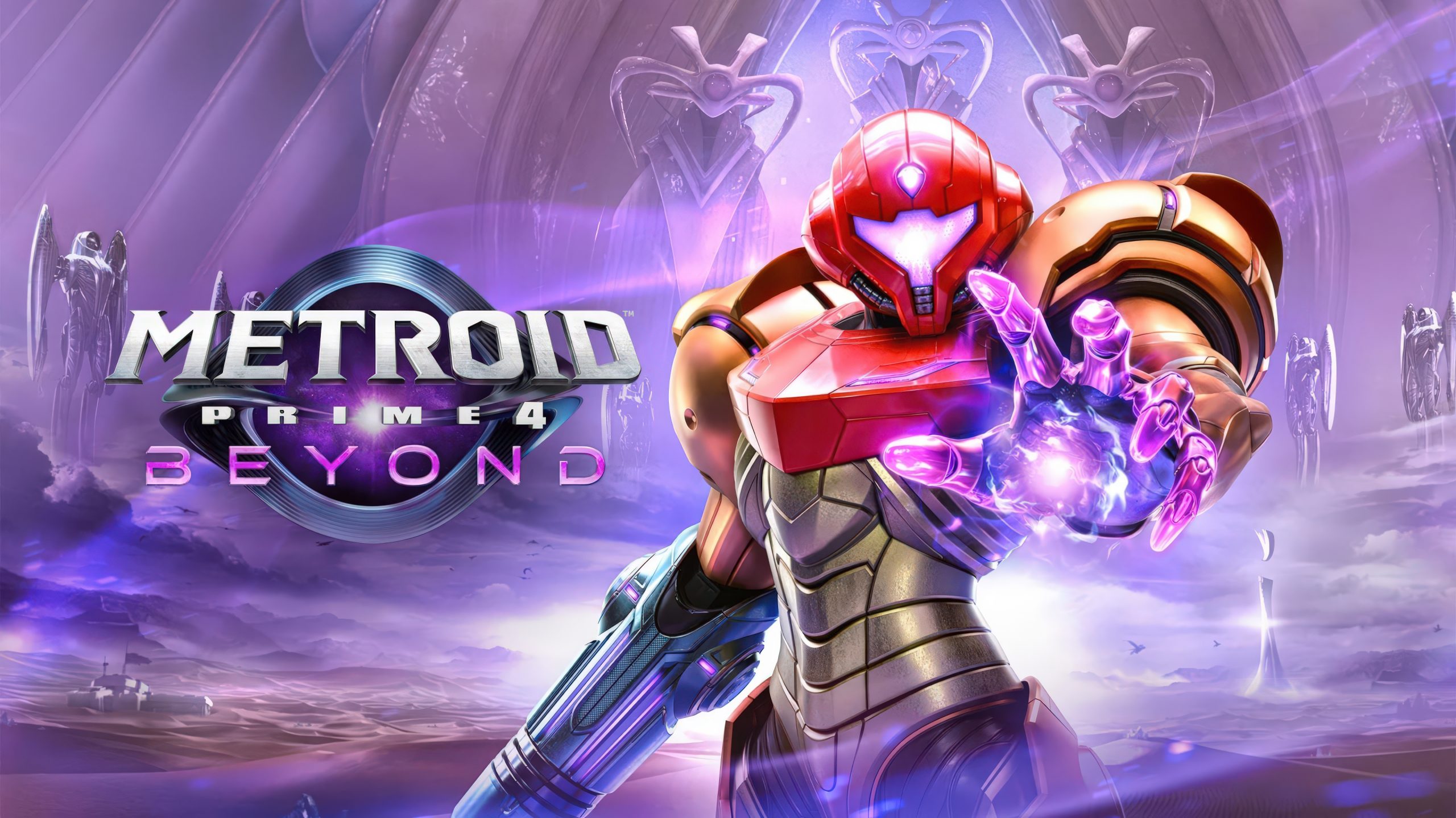
Metroid Prime 4 Runs Well on PC Emulators and Can Even Be Played in Stereoscopic 3D
The final triple-A game release of the year, Metroid Prime 4: Beyond, was just released. Our Nathan Birch reviewed the game for the Nintendo Switch 2, but the game is also available for the original Nintendo Switch.
Indeed, as you might remember, it was initially announced for the previous Switch during Nintendo’s E3 2017 Spotlight, just a few months after that console’s debut. It famously had a troubled development phase, as Nintendo had originally picked Bandai Namco instead of Retro Studios to make the game.
The project wasn’t going well, which led to Metroid Prime 4: Beyond being rebooted and handed back to Retro Studios, resulting in an inevitable significant delay. Even though the Austin-based studio eventually launched the game well after the debut of the Switch 2, Nintendo still kept its promise to release the game on the original Switch, too.
That’s great news even for PC gamers because, while there are no Switch 2 emulators yet, there are plenty of Switch emulators. Sure, Nintendo cracked down hard on the scene and forced the closure of Yuzu (and its fork, Suzu), but many alternatives are still active, including Ryubing, an open-source fork based on the historic Ryujinx emulator, as well as newer emulators like Eden and Citron.
All of these are running Metroid Prime 4 well, as you can see from the embedded video. But the real kicker is that with ReShade, it’s even possible to render the game (and other Switch titles) in stereoscopic 3D and play it on a giant screen through the Virtual Desktop software. To begin, you will need to download ReShade 6.6.2 with full add‑on support and the Rendepth shader to convert the game’s depth buffer into a side‑by‑side 3D image that Virtual Desktop can interpret as stereoscopic video.
After installing ReShade (select the Vulkan option), enable the Rendepth shader and set the output to side-by-side with stereo strength at 100%, Z-buffer scaling at around 30, and parallax/overlap adjusted to your preference. To verify that depth is being captured correctly, ensure that the Show depth buffer setting is toggled on and use the AdjustDepth/DisplayDepth add-on to cycle through Vulkan depth sources until the buffer displays a proper gradient from black to white, rather than a flat white image.
If the depth preview is inverted, upside‑down, or flat, simply edit ReShade’s global preprocessor definitions, toggling flags such as “depth input is reversed” or “depth input is upside down” from 0 to 1, until the depth image looks correct. Once the right Vulkan depth source is selected (it’ll be the one with the most vertices) and the image is oriented correctly, disable the debug view, enable performance mode, and keep Rendepth active to generate the 3D image in normal gameplay.
Now, in Virtual Desktop, set the 3D mode to half side‑by‑side or over‑under so that the double image from Rendepth fuses into a stereoscopic view on the virtual big screen. The creator of the video, lionellion, describes the result as a “Nintendo 3DS pop‑out” visor effect with a presentation akin to having a giant curved screen in front of you. Of course, to replicate this effect, you will need a Virtual Reality/XR headset or glasses or a glassless 3D display like this one.
Needless to say, playing Metroid Prime 4: Beyond on PC can only be legally done if you purchased an original copy for the Nintendo Switch and then dumped it for your own use.
Follow Wccftech on Google to get more of our news coverage in your feeds.
First Appeared on
Source link