
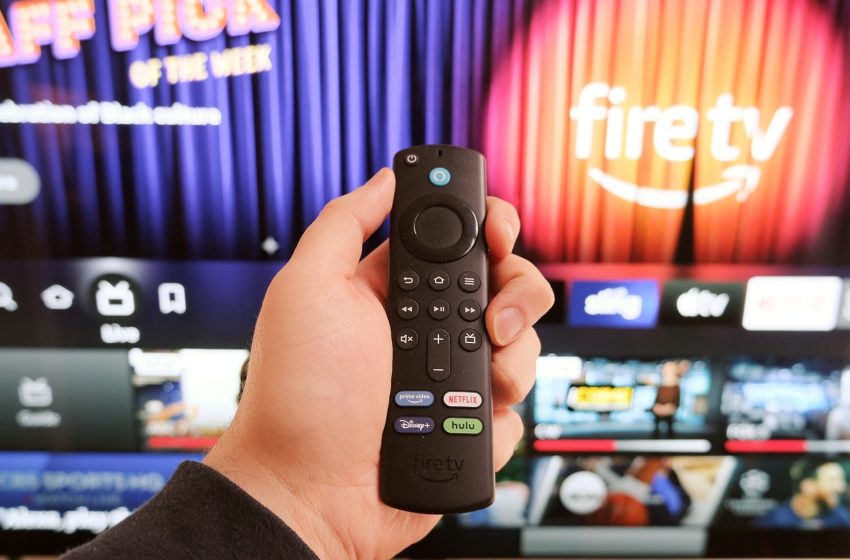
This Fire TV stick setting causes lag — here’s how to turn it off
Fire TV Stick lag is frustrating. You’re trying to load a show, and the home screen stutters, menus load slowly, and content takes forever to buffer. Before you blame your internet connection or assume your Fire TV Stick is too old, there’s a setting worth checking.
Featured Content autoplay runs preview videos on your home screen as you browse. These snippets start loading automatically before you’ve even selected anything, competing for bandwidth with whatever you’re actually trying to watch. This background activity slows down the entire device, causing the sluggish performance most people attribute to poor internet or aging hardware.
1. Navigate to settings
Press the Home button on your Fire TV remote, then scroll to Settings on the main menu. Select Settings to open the full settings menu.
2. Access Featured Content preferences
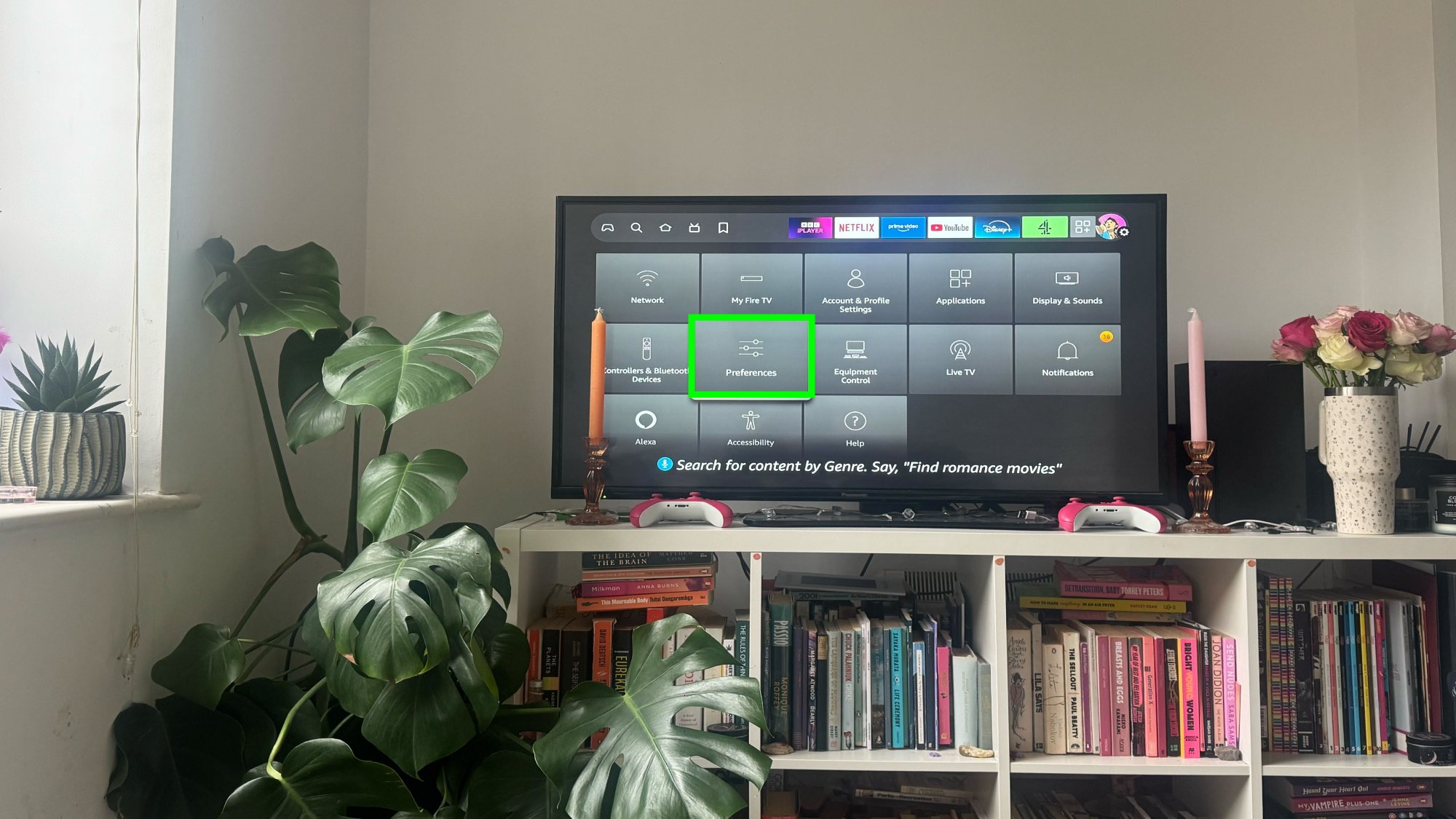
In Settings, scroll down and select Preferences. Within Preferences, find and open Featured Content. This is where autoplay controls are located.
3. Disable video and audio autoplay
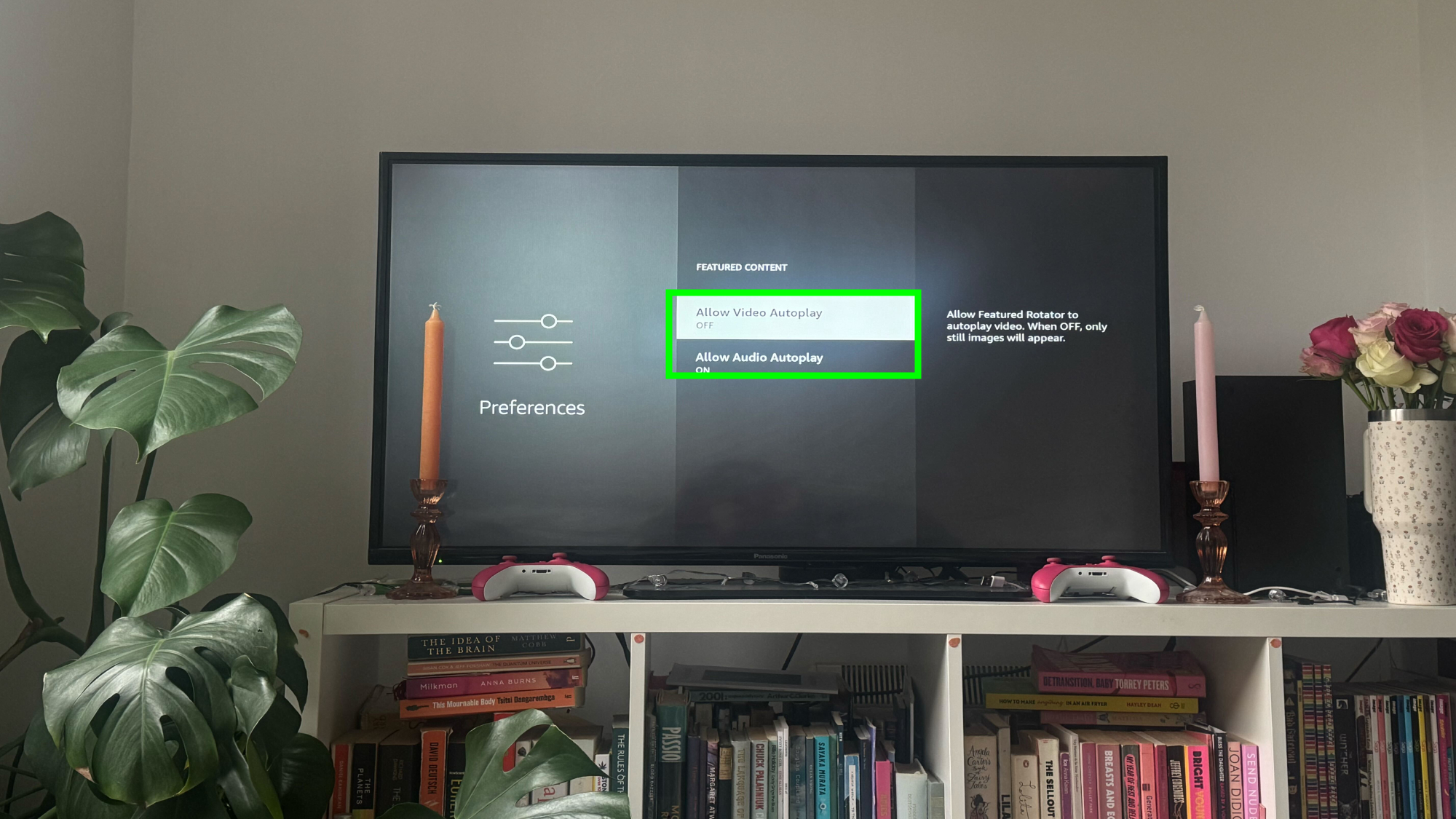
Toggle Allow Video Autoplay to Off. Then toggle Allow Audio Autoplay to Off as well. Both settings need to be disabled to completely stop background previews from loading.
Once both are off, back out to your home screen. Navigation should feel noticeably snappier, and content should load faster without the lag caused by competing autoplay videos.
If you still experience sluggishness after disabling autoplay, try a soft reboot by holding the Select and Play/Pause buttons simultaneously on your remote until the Fire TV Stick restarts.

Follow Tom’s Guide on Google News and add us as a preferred source to get our up-to-date news, analysis, and reviews in your feeds. Make sure to click the Follow button!
More from Tom’s Guide
First Appeared on
Source link